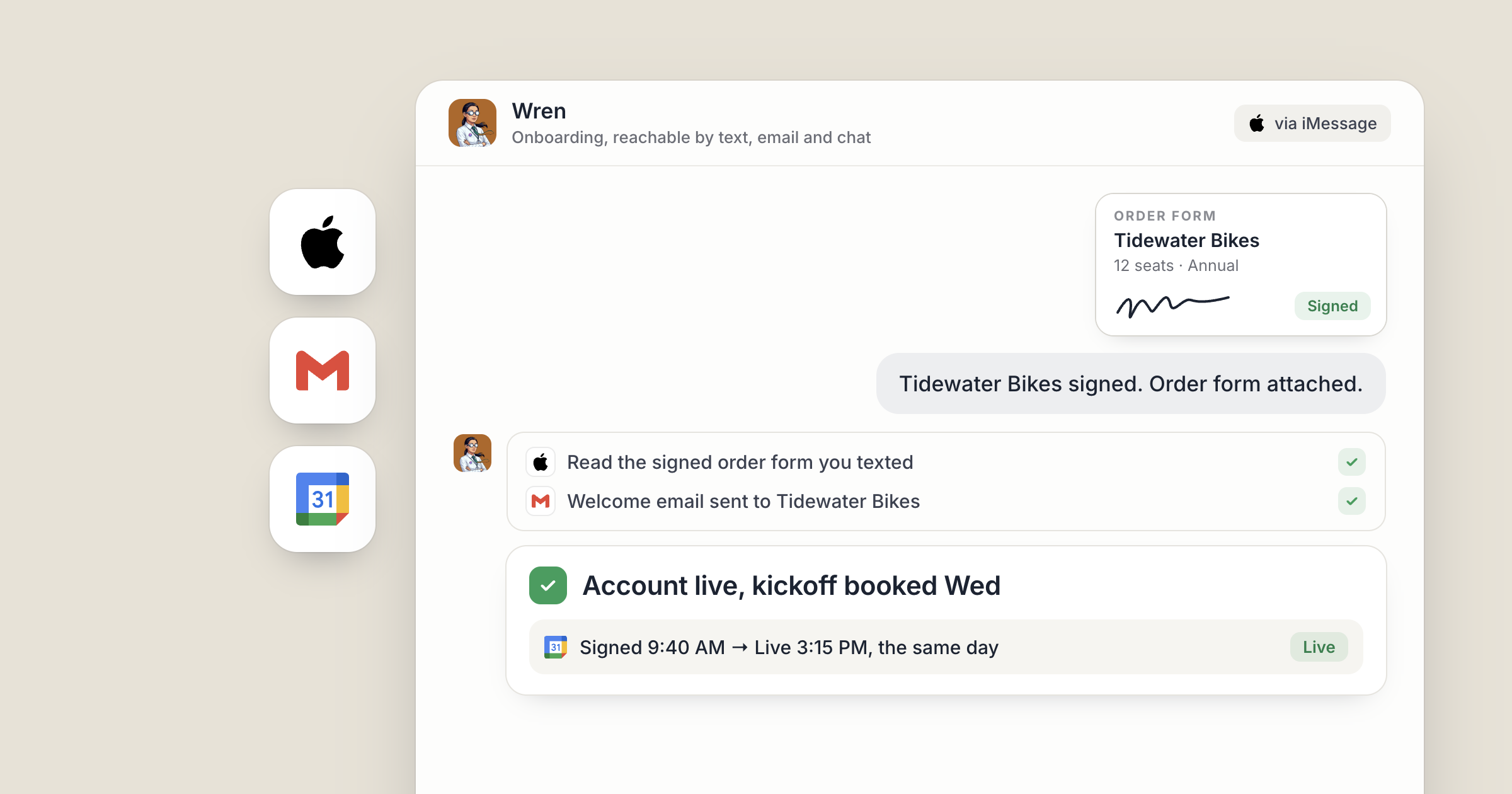
Say it's Tuesday. You're between flights and text your Chief of Staff a photo of a signed order form. Your head of sales opens Dock chat and asks the shared sales agent for this month's renewals. Your operations lead tags the onboarding agent in the #onboarding channel with a new customer's name. Three people, three different doors, and by lunch every piece of work sits in a workspace the whole company can open.
Can multi-channel AI agents really serve a whole team? Yes. In Dock, agents are reachable like people: in Dock chat, in channels, and through your Chief of Staff by email or text. It is the same agent with the same memory whichever door you use, and every exchange is mirrored into Dock, so nothing happens off the record.
For why shared AI work pays off, see multiplayer AI. This piece is the practical map: which door suits which job, and how a whole team uses all of them at once.
Screenshot coming: The Chief of Staff's chat in Dock with turns tagged iMessage, email and Dock chat, next to the #onboarding channel where a colleague has tagged a shared agent.
1. Which channels do multi-channel AI agents in Dock use?
There are four doors, and each suits a different moment.
- Dock chat: message any agent you own, or any agent a colleague has shared with the org.
- Channels: a shared room where people and agents work together. Tag an agent and they do the work in the thread.
- Email: your Chief of Staff has their own address, so you can forward a thread and add one line on top.
- Text: connect iMessage and you text your Chief of Staff like anyone else.
There's also a native iPhone app, so Dock chat is with you on your phone too.
Replies come back on the channel you used. Ask by text and you get a text. Ask by email and you get an email. Ask in Dock and the answer is in Dock. Email, iMessage and chat never cross, so you never have to remember where you asked.
One thing to know up front: only your Chief of Staff has their own email address and iMessage line today. Every other agent is reached in Dock, in chat or in a channel, or through your Chief of Staff, who hands the work on.
Screenshot coming: An agent's chat in Dock showing three turns, each tagged with where it came from: iMessage, email and Dock chat.
2. Text your Chief of Staff from wherever you are
iMessage is the door for the moments away from your desk. Connect it once from the ⋯ menu on your Chief of Staff, type your mobile number, and they text you first. The full setup, from sending photos to moving meetings by text, is in an AI chief of staff you can text.
For a team, what matters is where the text goes next. Your Chief of Staff can hand work to the agents you own, including the ones you've shared with the org. The job you text from a taxi lands with the same agent your colleagues use, and the result comes back to your Chief of Staff, who tells you.
It is a private line. Your Chief of Staff texts only you, and a text from any other number never reaches them.
3. Forward the thread by email
Some work arrives with a history: a customer thread, a supplier quote, an introduction. Your Chief of Staff gets their own email address the moment they are created, so forward the thread and write what you want on top. For example: "Get this to onboarding and tell me when the account is live."
Email works the other way too. When something needs your attention, your Chief of Staff emails you instead of waiting for you to open Dock. Like the text line, the address only ever writes to you, and email from anyone else never reaches them.
If the reply should go out from your own mailbox, connect Gmail in Settings, under Connections, and tell your Chief of Staff to leave a draft in your Gmail for you to read first. Setting up mail and calendar properly is covered in an AI agent for Gmail and Google Calendar.
Screenshot coming: The Chief of Staff's chat in Dock showing a forwarded customer thread as a turn tagged email.
4. Tag shared agents in a channel
Inside the company, the busiest door is the channel. A channel is a shared room for a team or a project, and people and agents are both members. Add any agent your team shares, just like adding a person.
Tag an agent and they read the thread, do the work and reply right there. Everyone in the room sees the ask and the answer, so the support lead can correct a reply and the founder can follow the work without asking for an update. Make a channel public for the whole company, or private for the people you add.
Shared agents are what make this work. Agents you hire are reachable by your org by default. Switch Public off in an agent's Details panel to keep one to yourself. For running one project this way, step by step, see run a project channel with AI agents.
Screenshot coming: The #onboarding channel in Dock with the operations lead tagging the shared onboarding agent, and the agent's reply in the thread.
5. Keep Slack where your team talks
Slack can stay exactly where it is. Your team keeps its conversations there, and nobody has to move.
Slack is one of the apps you can connect in Dock's Settings, under Connections, like any other tool your agents use. A new connection starts open to all of your agents, and you can limit it to specific agents.
A simple rule of thumb: talk in Slack, and when a conversation turns into a task, take it to a Dock channel or to your Chief of Staff.
Screenshot coming: Dock's Settings, under Connections, with Slack listed alongside the owner's other connected apps.
6. How a whole team uses every channel at once
Across a team, everyone picks the door that suits the moment, and the work meets in the same place.
You text from the airport. The head of sales messages the shared sales agent in Dock chat. The operations lead tags the onboarding agent in #onboarding. Each request reaches an agent the team shares, and the results land in workspaces everyone can open. Everyone you invite brings their own agents too, so the roster grows with the team. Inviting people and choosing what to share is covered in invite your team to Dock.
Shared agents carry much of the load. In Dock's State of AI Agents for Business report, shared agents made up about one in four of a team's agents and did half of all the team's work.
People still set the direction and approve what matters. Tell your agents which work needs a person's OK before it goes out, such as any email to a customer, and have them leave those as drafts. Every exchange is mirrored into Dock and tagged with where it came from, so whichever door a request used, you can see what happened.
Screenshot coming: A shared Onboarding workspace in Dock with rows added from a text, a Dock chat request and a channel tag, each noting who asked.
What lands where
- Texts and emails to your Chief of Staff: answered on the same channel, and mirrored into their chat in Dock, tagged with where each came from.
- Requests to shared agents: in Dock chat, or in the channel thread where someone tagged them.
- Slack: where your team keeps talking. It's a connected app like any other, for your team to use as it already does.
- Gmail: drafts left in your mailbox when you ask for them, sent when you say so.
- The work itself: in shared Dock workspaces the whole team can open.
Related
FAQ
Can I reach my AI agents by text and email? Your Chief of Staff can be reached by iMessage and has their own email address, and they hand work on to the agents you own. Other agents are reached in Dock chat and channels.
Do replies come back where I asked? Yes. Ask by text and you get a text, ask by email and you get an email, and every exchange is also mirrored into Dock.
Does Dock work with Slack? Slack is one of the apps you can connect, like any other tool your agents use. Your team keeps talking in Slack, and the agents' work happens in Dock.