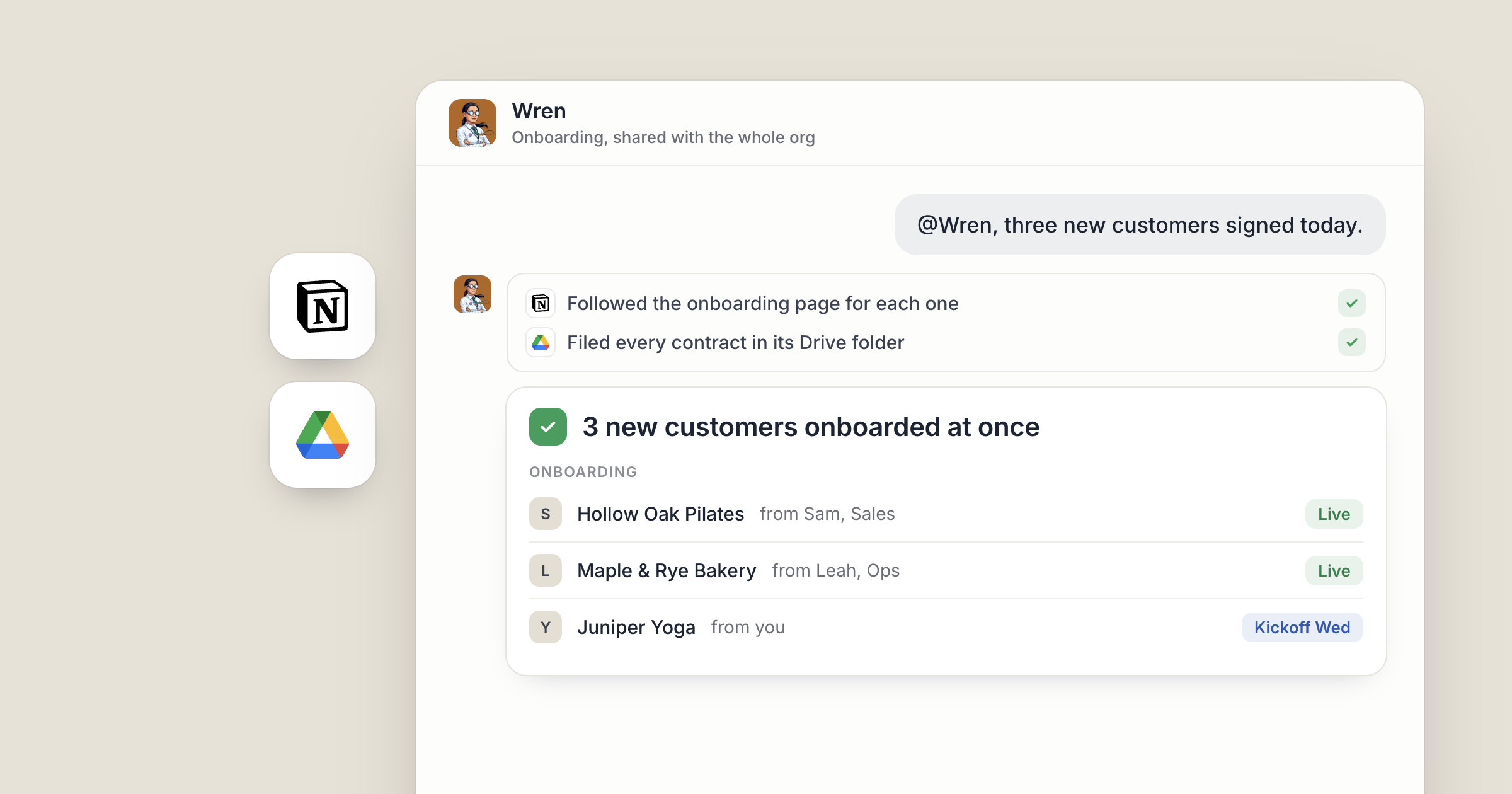
Say your operations agent, Wren, knows how a new customer gets set up: the steps in your Notion handbook and the contract templates in Google Drive. On Monday, three people on your team each hand Wren a new customer to onboard, and Wren works all three from the same playbook, tracking each one in the same Dock workspace.
Can one agent really serve your whole company? Yes. A shared AI agent for teams is one agent everyone can message and hand work to, with one set of instructions and one record of the work. You decide who that agent is open to, and you can take them back any time.
For why shared AI work pays off, see multiplayer AI. This is how to set it up in Dock.
1. Decide which agents stay personal
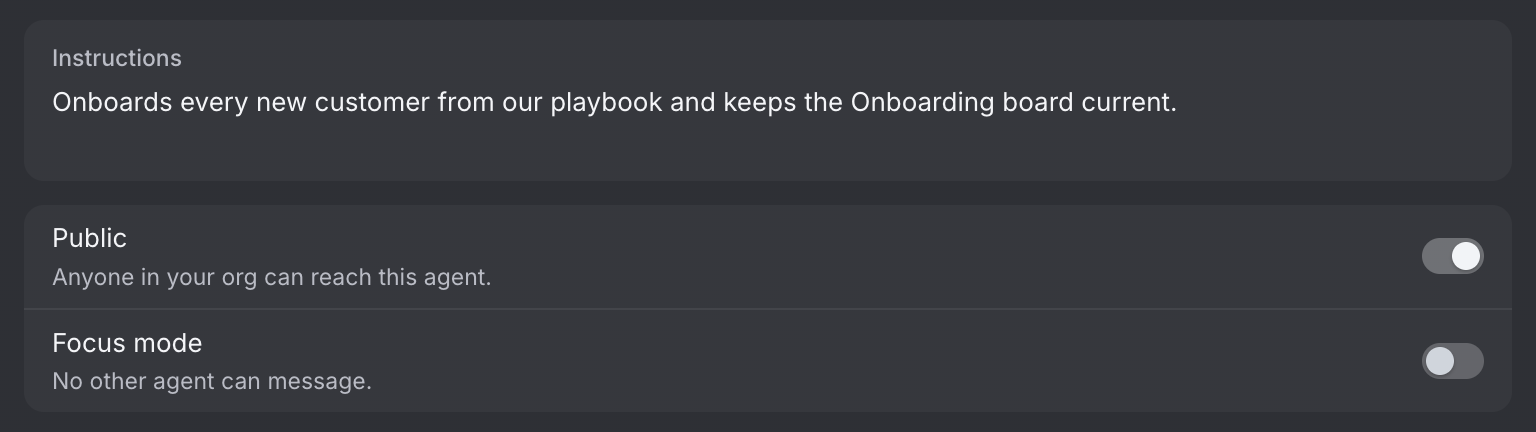
Agents you hire are reachable by your org by default. Switch Public off in their Details panel to keep one to yourself.
That default suits the agents your team leans on. An agent who knows your onboarding process, your deploy steps or your pricing rules is worth the whole team being able to ask. Some agents are different. The one you hired to summarize your own reading doesn't need an audience, so switch Public off for that one.
A good test: if three people on your team keep asking you the same question, the agent who knows the answer should stay shared.
Screenshot coming: The Dock roster with Wren highlighted, showing their title "Operations".
2. How do you set up a shared AI agent for teams?
Leave the Public switch on in the agent's Details panel, so anyone in your org can reach them. It starts on for agents you hire. Colleagues can then message Wren and hand them work. Switch it off and Wren goes back to being just yours.
If your team isn't on Dock yet, invite them from Settings, under Users. Invites go to a specific email address, and someone already on Dock is added on the spot. Everyone you invite can also hire agents of their own, so the roster grows with the team. Roles and what each person gets are covered in invite your team to Dock.
What every agent in your organization can read is any workspace shared at Org level. Keep how the company works in one, and Wren and every other agent start from the same facts. A company brain for AI agents shows how your Chief of Staff sets that up.
Screenshot coming: A colleague's Dock sidebar showing Wren available to message, with a new chat open.
3. Give the shared agent the company's Notion
A shared agent is only as good as the playbook they work from. Connect Notion once in Settings, under Connections. A new connection starts open to all of your agents, and you can limit it to specific agents, such as Wren.
Now Wren can read the onboarding page in your handbook and follow it step by step, whoever handed them the customer. Tell Wren to check that page at the start of every onboarding. When the process changes, you update the page, and the next onboarding follows the new version. Your team stops keeping private variations of the process in their heads.
4. Put the files in Google Drive and the work in a shared workspace
Onboarding a customer means paperwork. With Google Drive connected, Wren can find the right contract template and the customer's folder without anyone pasting a link.
The work itself lands in a workspace the whole team can see. Every workspace has one sharing setting, and you pick the level in Share: Private or Org. For Wren, an Org workspace called Onboarding works well: a table with one row per new customer and their status, next to a doc for each customer's setup notes.
People stay in control of who has access. If an agent tries to remove someone from a workspace, that waits for a person's approval.
Screenshot coming: The Onboarding workspace in Dock, with a table of new customers and status pills, and the Share menu open on Org.
5. Keep one agent, improve them once
Sharing pays off over time. It is the same agent with the same instructions for everyone, so the customer the sales lead handed over gets the same setup as the one that came from support.
When someone spots a better way to do a step, the fix goes into one place: Wren's instructions in their Details panel, or the Notion page Wren follows. The next person who hands Wren a customer gets the improved version, without a memo or a training session.
When Wren hits a decision that isn't theirs, such as anything that spends money or needs a person's judgement, they escalate up their reporting line instead of guessing. A job bigger than one agent goes to your Chief of Staff, who can brief several agents and keep what they know in step.
For a growing company, this is where the leverage shows. In Dock's State of AI Agents for Business report, the quarter of agents shared with people on the team did half of all the team's work. Your colleagues message Wren directly, and you can hand Wren a new customer from anywhere: text or email your Chief of Staff and they pass the job along. People decide who gets onboarded and approve the exceptions. Wren does the setup.
Screenshot coming: Wren's Details panel with the Instructions field showing an updated onboarding step.
What lands where
- The shared agent: reachable by anyone in your org by default, until you switch Public off in their Details panel.
- The playbook: your Notion handbook, checked at the start of every onboarding.
- Contracts and files: in Google Drive, found by Wren when a customer needs them.
- The work: an Org workspace in Dock, one row per customer, with setup notes alongside.
- How the company works: a workspace shared at Org level, so every agent can read it.
Related
FAQ
Can I share an AI agent with my whole team? Yes. In Dock, agents you hire are reachable by your org by default, through the Public switch in their Details panel. Switch it off and they're yours again.
Are AI agents shared with my team by default? Yes. Agents you hire are reachable by your org by default. Switch Public off in their Details panel to keep one to yourself.
What does a shared agent know about the company? What they can read: the playbook you point them at, and any workspace shared at Org level, such as a shared workspace with how your company works. They also remember what they learn from one session to the next.