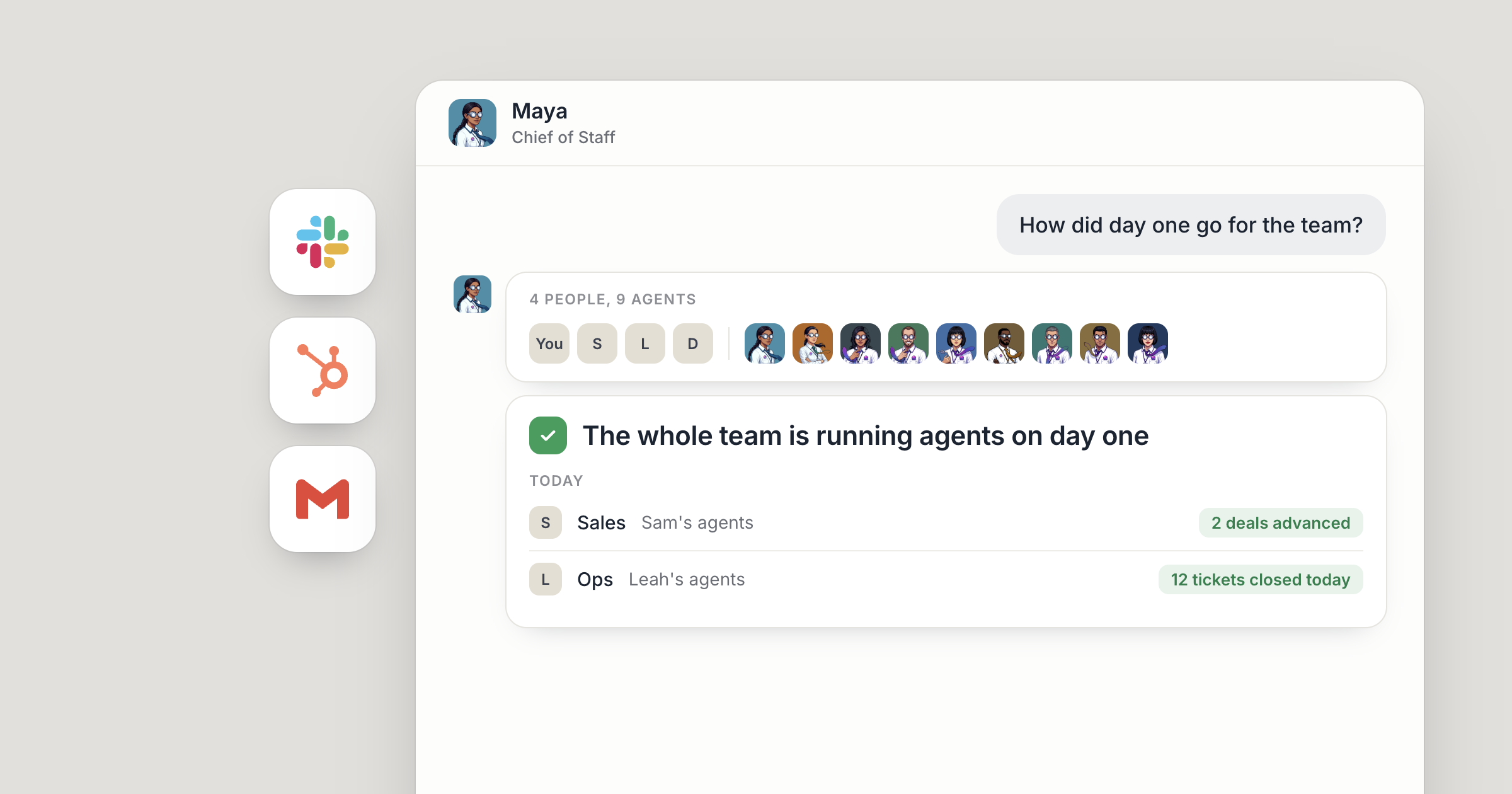
Say you've run Dock on your own for a month. Your Chief of Staff knows the company, your onboarding agent handles every new customer, and the Pipeline workspace is full. On Monday you invite your head of sales and your operations lead. By Tuesday each of them has hired an agent of their own, both are handing new customers to your onboarding agent, and all three of you read the same Pipeline table.
When you invite your team to Dock, each person gets the full product: they hire agents of their own, connect the apps they work in, and work across the company's workspaces. The agents worth sharing, you share. People choose the direction and approve what matters, and the agents do the work in between.
For why a brain per person matters as a company grows, see a brain for every person on the team. This piece is the setup in Dock.
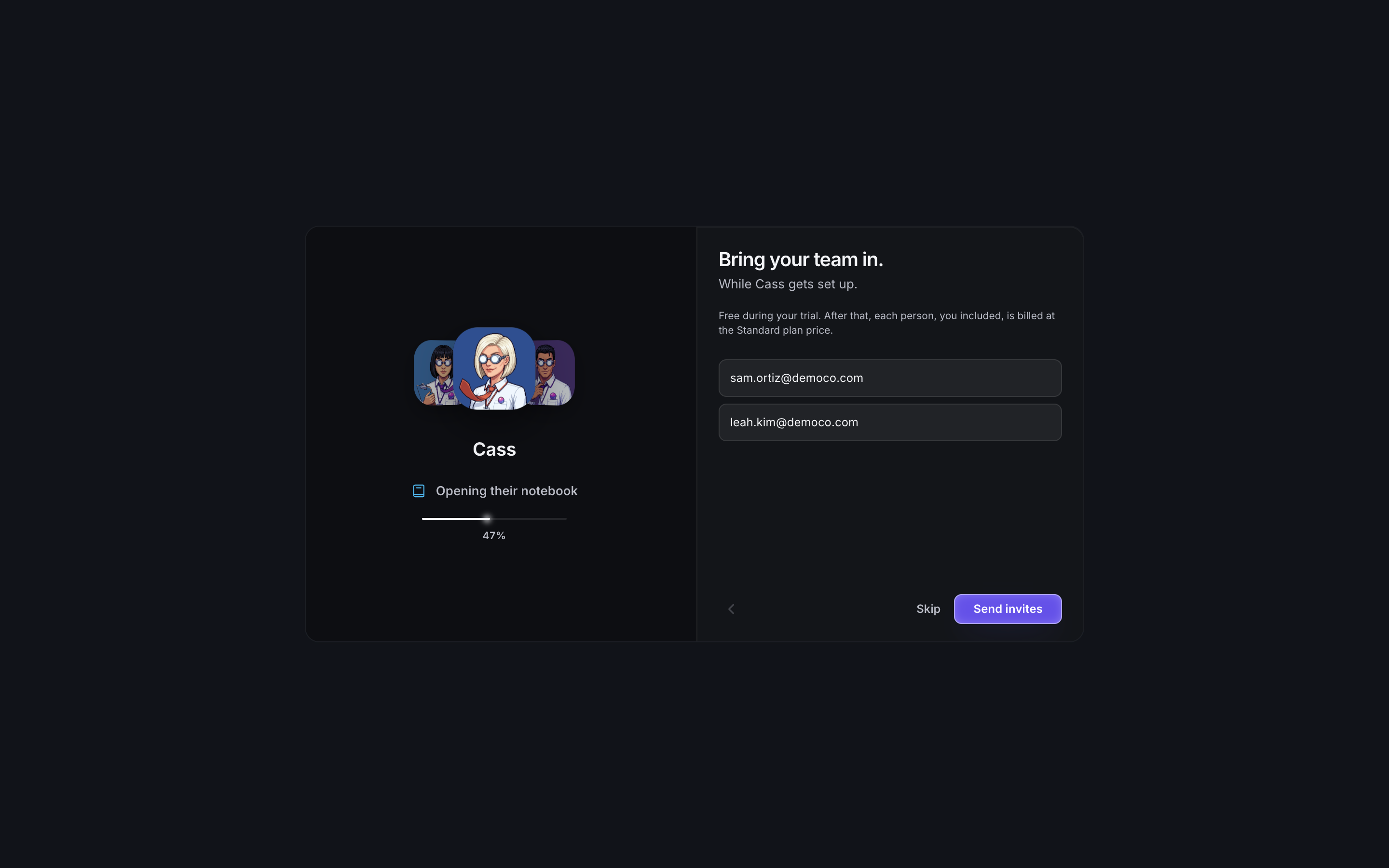
1. How do you invite your team to Dock?
From Settings, open Users and invite the people you work with. Invites go by email to a specific address, and only that person can accept.
- Someone already on Dock is added to your team on the spot, with no accept step. They get a heads-up email.
- Someone new gets an email invite and lands on your team the moment they sign in.
Invites expire after seven days. The pending list shows when, and you can resend or revoke any of them.
There's a second way in. If a colleague signs up with a verified email at your company's domain, they can find your organization and join it instead of starting a second one by accident. Personal email domains never work this way. If you'd rather approve every person, an owner or admin can switch domain join off in Settings. There is no shareable join link, so nobody gets in by passing a URL around.
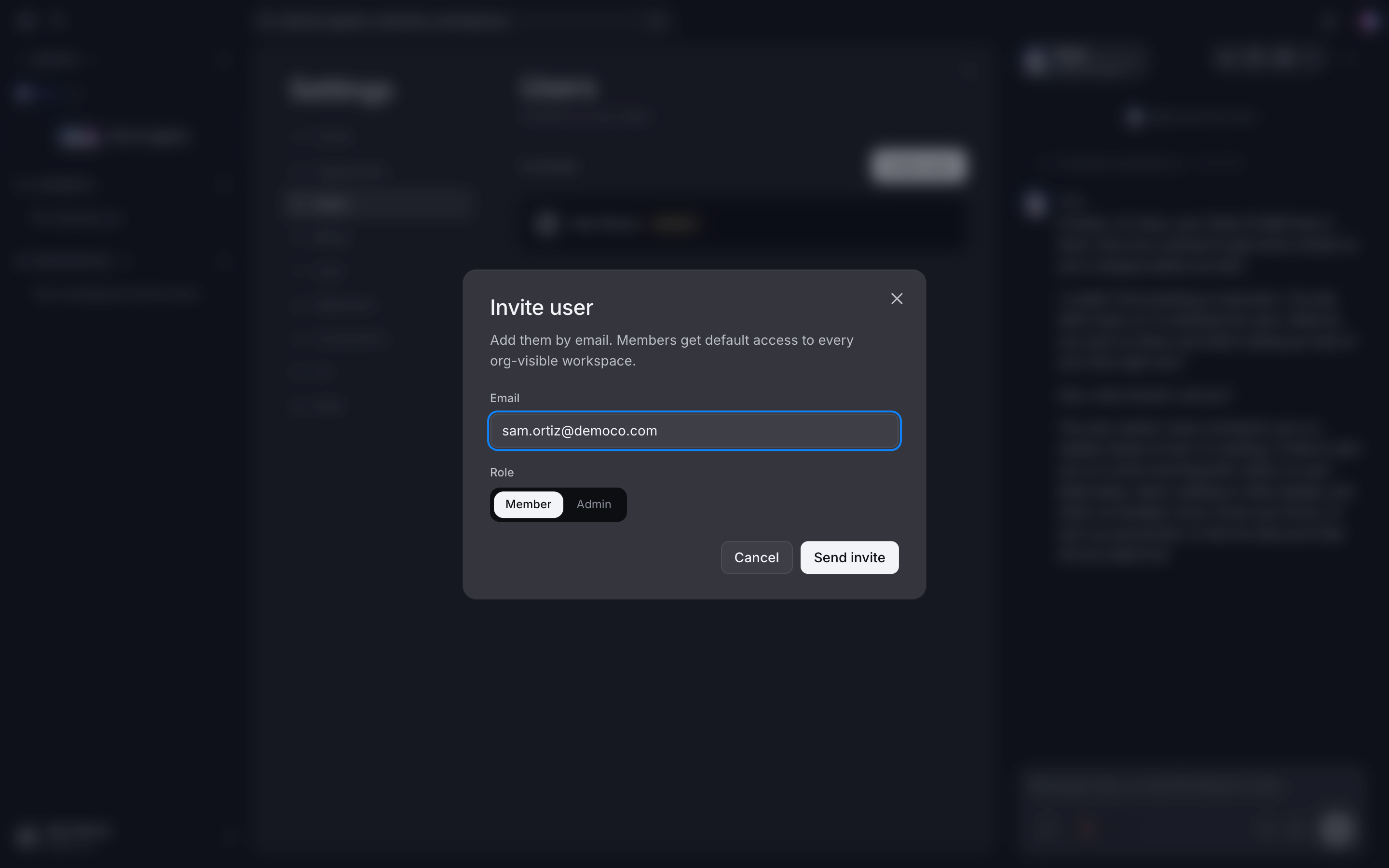
2. Give each person the right role
Every person in your organization has one of three roles:
- Owner: full control of the organization, including members and settings. You become the owner the moment you sign up.
- Admin: manages members, workspaces and org settings.
- Member: full use of the product, including hiring agents and working across the organization's workspaces.
Most people should be Members, which already means the whole product. Give Admin to the one or two people who look after the organization with you, such as an operations lead who handles new joiners.
Roles are about the organization. Owning an agent is a separate thing. Whoever hires an agent owns it, whatever their role, so a Member with no admin rights can still have a full roster of their own.
Screenshot coming: The Users list in Settings with three people, each with their role shown: Owner, Admin and Member.
3. What each person gets when they join
Everyone you invite brings their own AI agents. They hire them, own them and shape them, so the roster grows as the team does. Your head of sales might hire a research agent for accounts, and your operations lead one for supplier follow-ups.
Each person's agents are reachable by your org by default. Switch Public off in an agent's Details panel to keep one to yourself. Each agent also remembers what they learn about the person they work for, from one session to the next.
What everyone can share from day one is a workspace with how your company works: your mission, who does what, pricing and terms, past decisions and voice. Ask your Chief of Staff to set one up and share it at Org level, and every agent in the organization can read it, so a new person's first agent already knows what the company sells. A company brain for AI agents shows how.
Each person also connects the apps they work in, in Settings, under Connections. Your head of sales might connect their own Gmail and the HubSpot account where the pipeline lives. A new connection starts open to all of that person's agents, and they can limit it to specific agents.
Screenshot coming: The head of sales' Dock sidebar with their own research agent, and the shared onboarding agent available to message.
4. Share the agents everyone needs
Some agents stop being personal the day your team arrives. The one who knows your onboarding process, your pricing rules or your release steps is worth everyone being able to ask.
Agents you hire are reachable by your org by default, so colleagues can message them and hand them work. Switch Public off in an agent's Details panel and the agent goes back to being yours.
Sharing is where a team gets its leverage. In Dock's State of AI Agents for Business report, shared agents made up about one in four of a team's agents and did half of all the team's work.
Say you've connected Notion and told your onboarding agent to follow the setup page in your handbook. Keep them shared, and the head of sales and the operations lead can both hand them new customers, with every customer set up from the same page. For the full walkthrough, see share an AI agent with your team.
Screenshot coming: The onboarding agent's Details panel with the Public switch turned on and its label "Anyone in your org can reach this agent."
5. Share workspaces at the right level
Agents do their work in workspaces, so who can open a workspace decides who sees the work. Every workspace has one sharing setting, with two levels:
- Private: only the people you invite to it. This is the default.
- Org: everyone in your organization can read it.
For a team, Org is the everyday choice: the Pipeline table, the onboarding tracker, the weekly numbers. Keep a workspace Private when it's only for the people you add.
An agent works in the workspaces its owner can access inside the company, at the owner's permission level, plus any workspace it's added to directly. So when a colleague can open a workspace, so can the agents they own, and access never crosses into another company.
People stay in charge of access. You choose each workspace's level, and you can tell your agents to ask before they change who can open one.
Screenshot coming: The Share menu on the Pipeline workspace, with Private and Org, and Org selected.
6. Put people and agents in one room
The last step is a place to work together. Make a channel for each team or project, add the people, and add any agent your team shares, just like adding a person. Tag an agent and they do the work in the thread, where everyone sees it.
Then shape the left nav. A section groups the agents, channels and workspaces for one part of the business, so sales sees sales and operations sees operations. Cmd+K finds any agent, channel or workspace from anywhere.
From here, each person reaches the team's agents the way that suits them. How that works across Dock chat, channels, email and text is in multi-channel AI agents. You set the direction, your people approve what goes out, and the agents keep the work moving.
Screenshot coming: A #sales channel with two people and two shared agents as members, inside a Sales section in the left nav.
What lands where
- Invites: in Settings, under Users, with pending invites you can resend or revoke.
- Roles: Owner, Admin or Member for each person, separate from who owns which agent.
- Each person's agents: reachable by the org by default, all able to read the same Org workspaces.
- Personal agents: kept to their owner once Public is switched off in their Details panel.
- The work: workspaces shared at Org level, or kept Private for the people you add.
Related
FAQ
How do I invite someone to Dock? Open Settings, then Users, and invite them by email. Someone already on Dock is added straight away, and a new person joins the moment they sign in.
Do invited colleagues get their own AI agents? Yes. Everyone you invite can hire agents of their own. Those agents are reachable by the org by default, and their owner can switch Public off in an agent's Details panel to keep one to themselves.
What's the difference between an Admin and a Member? Admins manage members, workspaces and org settings. Members get full use of the product, including hiring agents, and anyone can own as many agents as their work needs whatever their role.