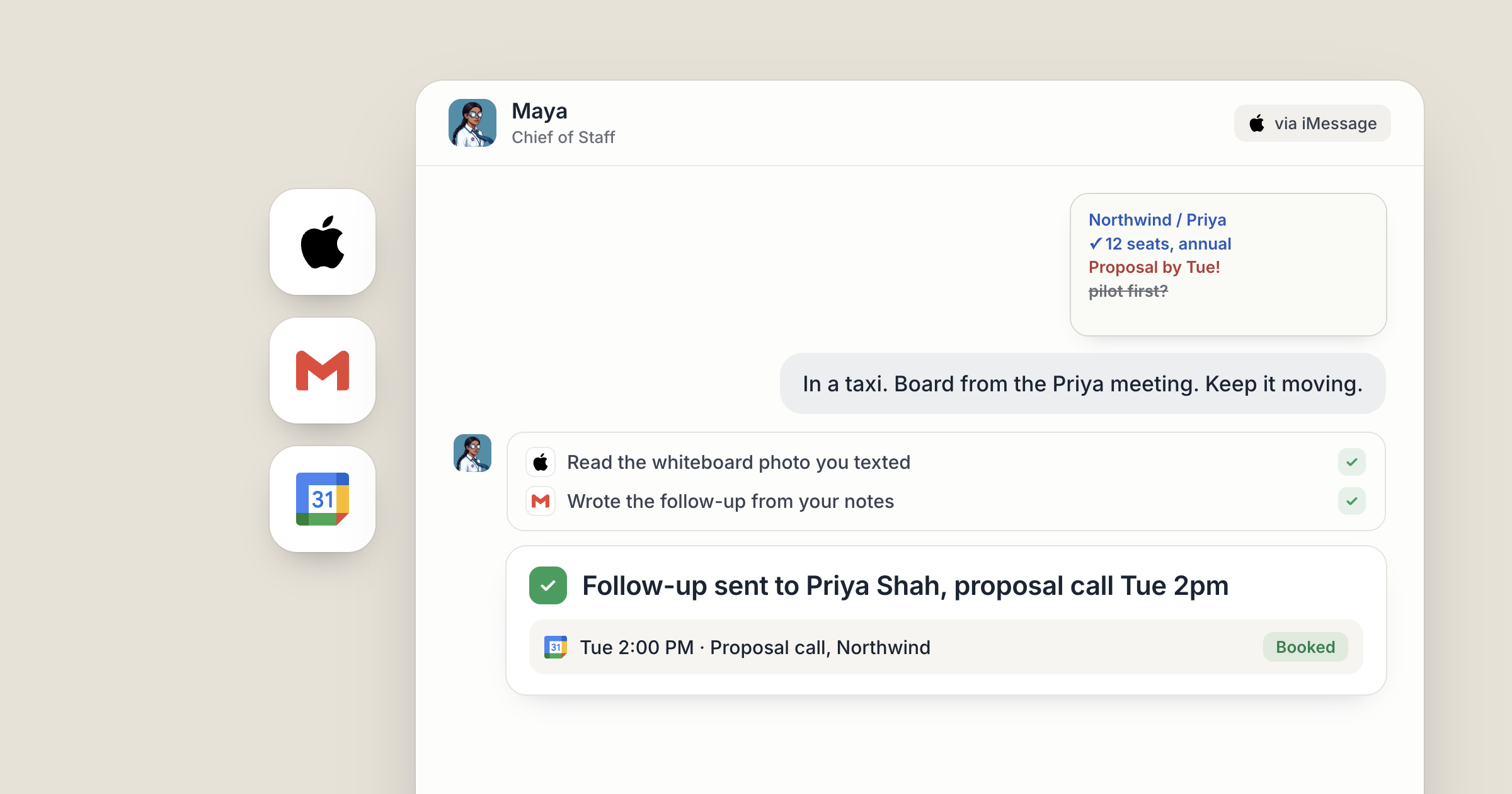
Say you walk out of a customer meeting and text your Chief of Staff, Maya, a photo of the whiteboard and one line: "Turn this into the follow-up for Priya and find us an hour next week." By the time you sit down at your desk, the follow-up is in your Gmail, a proposed time is on your Google Calendar, and the whole exchange is in Maya's chat in Dock.
Can you really hand off work from your phone? Yes. Every Dock account starts with an AI chief of staff you can text: they have their own email address and can be connected to iMessage, so you send work the way you'd text a colleague. The answer comes back where you asked, and everything is mirrored into Dock so nothing happens off the record.
For the full range of what they take on, see the 10 super powers of your chief of staff. This piece is about reaching them when you're away from your desk.
1. How do you set up an AI chief of staff you can text?
Your Chief of Staff is the first agent on your roster. Once connected, they can text or email you instead of waiting for you to open Dock.
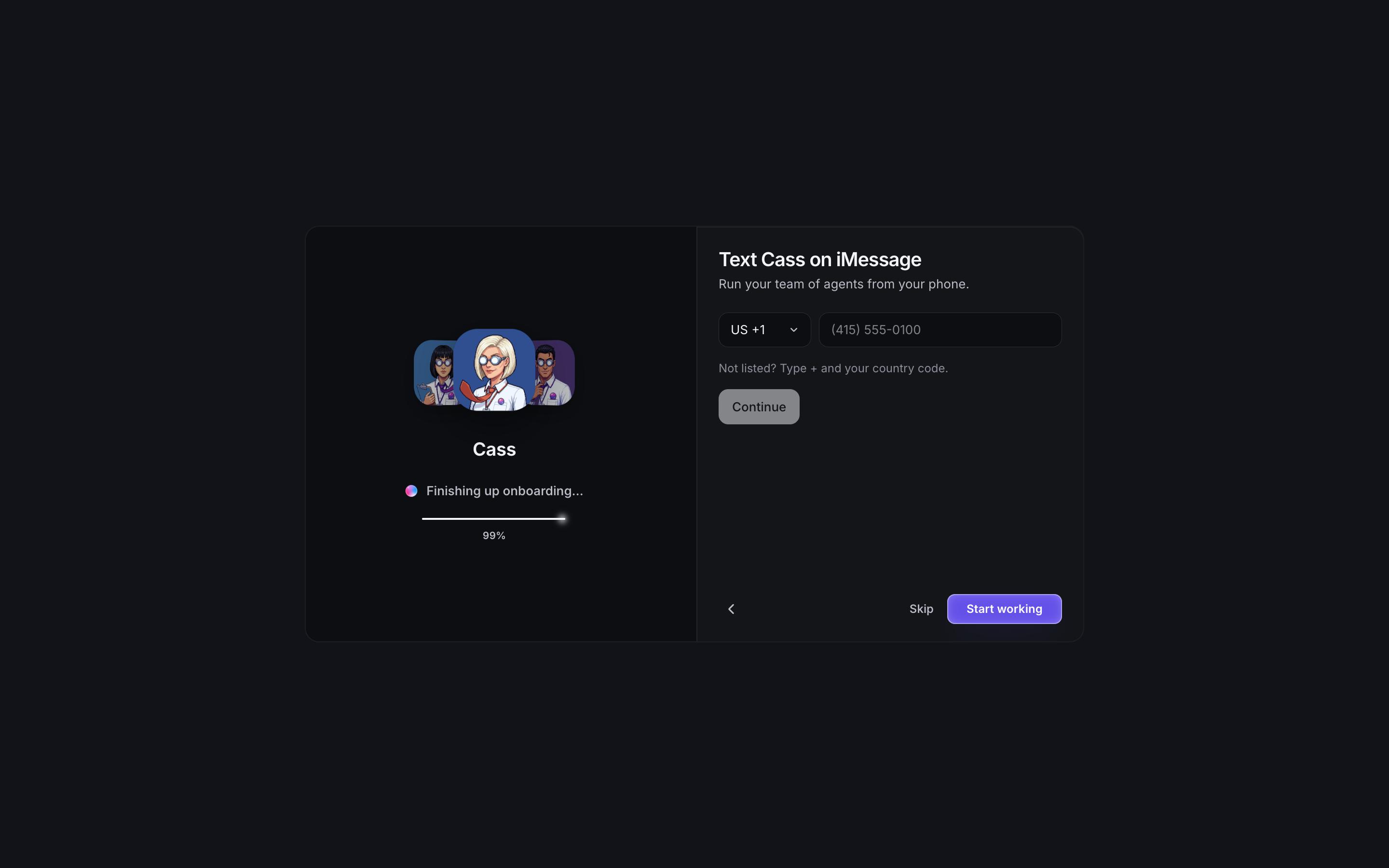
Connecting iMessage takes under a minute. Open the ⋯ menu on your Chief of Staff in Dock, choose Connect iMessage, then type the mobile number you text from. They text you first, with a welcome message naming you and Dock. Save the contact and from then on it is just texting.
It is a private line. Your Chief of Staff texts only you, and a text from any other number never reaches them.
There's also a native iPhone app, so the same chat is there whichever way you reach them.
2. Send the job however is easiest
Text works for a quick ask. Email works for anything with a thread behind it. Your Chief of Staff gets their own email address the moment they are created, so you can forward a customer thread and write "deal with this" on top.
You can send more than words. A photo of a whiteboard, a PDF or a voice note arrives as a real attachment. Dock keeps a copy, so the photo you sent from a car park is still in the chat when you get back to a computer.
Replies come back on the channel you used: ask by text and you get a text, ask by email and you get an email. Every exchange is also mirrored into the Chief of Staff's chat in Dock and tagged with where it came from. It is the same agent with the same memory whichever way you reach them.
Screenshot coming: The Chief of Staff's chat in Dock showing a mix of messages tagged iMessage and email, with the whiteboard photo attached to one turn.
3. Connect Google Calendar so they know your day
In their first week, your Chief of Staff suggests connectors early and deliberately few. Google Calendar comes first, because it is low risk and it powers most of what they do next. A call recorder usually comes second. Either way, they ask before connecting something that personal, and the answer is yours.
With your calendar connected, the daily brief they send on weekday mornings at 9:00 can speak to your actual day: what is on your plate, what needs you specifically, and what they are working on for you. The end-of-day wrap-up at 17:30 covers what moved and what needs a decision before tomorrow.
From your phone, scheduling becomes a sentence. For example, text "push my 3pm with Sam to Thursday and tell him why". When you ask for a schedule change, they make it.
4. Let Gmail carry the follow-ups
Once a follow-up exists, someone has to send it. With Gmail connected, your Chief of Staff writes the email in your voice, drawing on what they have learned about how you write.
What happens next depends on who asked. When you ask for a send, they send it. Outreach they thought of themselves arrives as a draft for you to approve first. Bigger outward moves, like sending an email campaign, always wait for a person's approval.
So from the back of a taxi you can text "send the follow-up to Priya, and draft one for her CFO", and get back one sent email and one draft to look at later.
5. Hand bigger jobs to the right specialist
Some jobs are bigger than one agent. Your Chief of Staff can hire specialists for you from a plain-language description of the role, and hand work to the agents you already have. How they brief and coordinate the rest of the roster is in how your chief of staff runs the team.
Only your Chief of Staff can be reached by text and email, so they are your one door. Text them "get the SEO agent to look at why the pricing page dropped" and they pass the job along. When a job is handed off, the result comes back to whoever handed it over, so your Chief of Staff gets it and tells you.
This is how a text from your phone reaches the rest of the company. Your Chief of Staff hands work to the agents you own, including the ones you've shared with your org, so the job you text from a taxi lands with the same agent your colleagues use, and the result sits in a workspace they can open. Everyone you invite brings their own agents, and the shared ones serve the whole team. You set the direction and approve the moves that matter. The agents do the work in between.
Screenshot coming: The Chief of Staff's chat showing a handoff to a specialist agent, with the specialist's result reported back.
What lands where
- Your requests: sent by iMessage or email, mirrored into your Chief of Staff's chat in Dock.
- Replies: on the channel you asked on, text for text and email for email.
- Calendar changes: on your Google Calendar, made when you ask.
- Emails: sent from your Gmail when you ask, or left as drafts for your approval when they are your Chief of Staff's idea.
- Daily brief and wrap-up: on weekdays at 9:00 and 17:30, from your Chief of Staff.
Related
FAQ
Can I text my AI chief of staff? Yes. Connect iMessage from your Chief of Staff's menu in Dock, type your mobile number, and they text you first. After that it works like texting anyone else.
Can other agents in Dock text or email me? Not yet. Only the Chief of Staff has their own email address and iMessage line, so you reach specialists through them.
Can I send photos and files by text? Yes. Photos, PDFs and voice notes arrive as real attachments, and Dock keeps a copy in the chat.