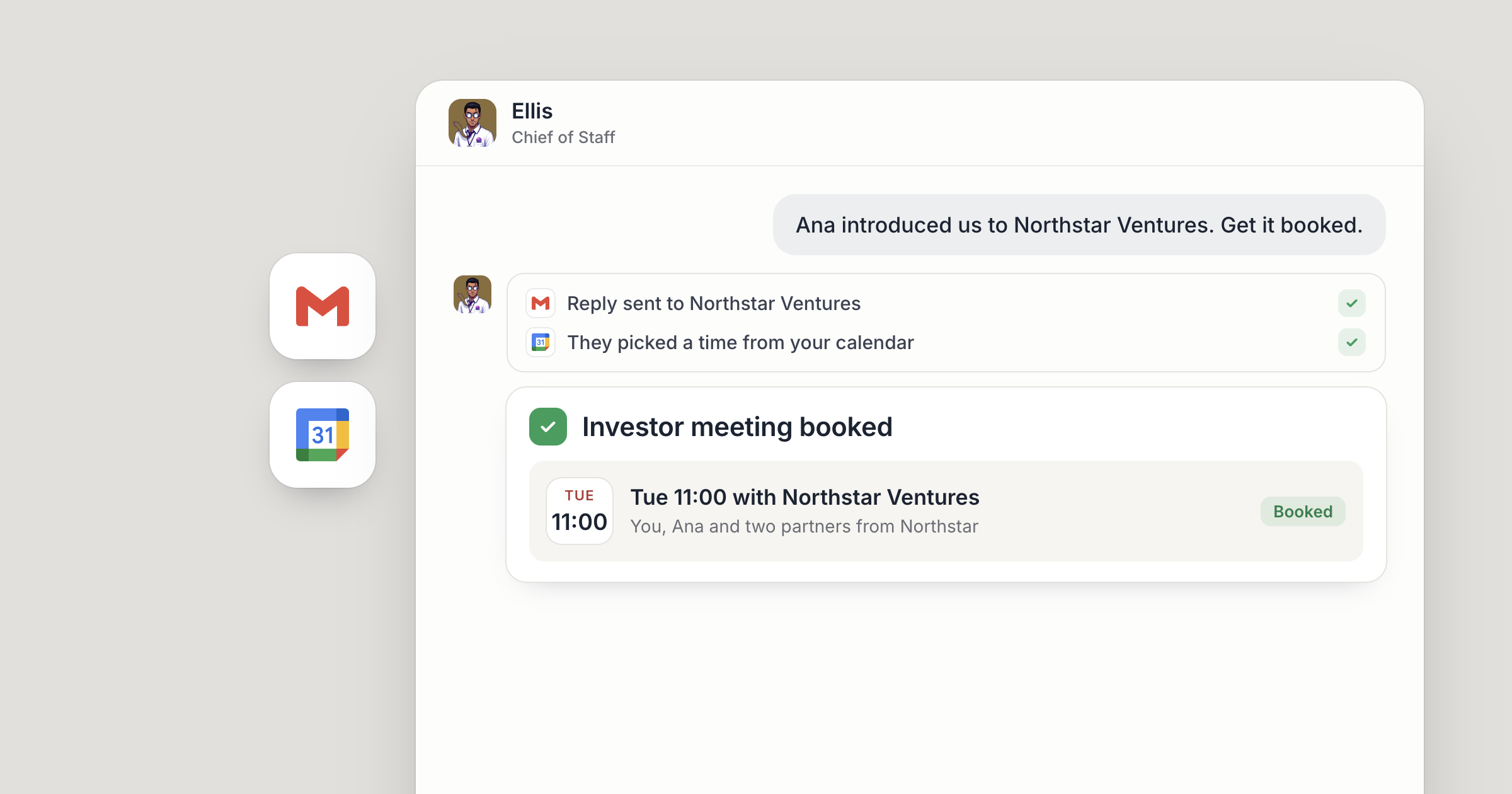
Say an investor intro lands in your Gmail on Tuesday night: a founder you know is connecting you with Mira Castell, a partner at Northgate Ventures. By Wednesday morning, Ellis, your Chief of Staff, has drafted your reply and offered two times that are free on your Google Calendar. You change one line and approve the send. When Mira picks Thursday at 10:00, Ellis books it.
That's what an AI agent for Gmail and Google Calendar is for: getting from an email that matters to a meeting on the calendar, with you deciding what goes out under your name. It works inside the same accounts you use, with the access you give it, and keeps to the line you set every day. If you're still weighing the idea, read what an AI email agent does and how agents manage email. This guide is the setup in Dock.
Screenshot coming: Ellis's chat in Dock showing the drafted reply to the Northgate Ventures intro, with two proposed times from Google Calendar, waiting for the owner's OK to send
1. How do you connect Gmail and Google Calendar to an AI agent?
An intro only becomes a meeting if Ellis can read the email and see your calendar, so start here. Open Settings, then Connections, and connect your mail and calendar.
Gmail takes more than one account. You can connect up to five Gmail accounts, for example a work address and a personal one. One is the default, the account your agents use unless you say otherwise. The first one you connect starts as the default, and Make default moves it. To use a specific account, name it the way it appears in Connections.
Google Calendar connects the same way. So does Outlook, if your mail lives there. Apps other than Gmail take one account each for now.
Each connection has its own access list. A new connection starts open to all of your agents, and you can limit it to specific agents. Your Chief of Staff might keep your inbox, while a research agent is taken off it.
Screenshot coming: Settings, then Connections, showing two Gmail accounts with one marked Default, plus Google Calendar, and the Access control panel listing Ellis
2. How do you get an AI agent to triage your inbox?
An intro worth answering is easy to miss under a night of receipts and newsletters, so start with sorting. It's low risk and it clears the most noise.
Tell Ellis how you want mail handled, in plain words. For example: label anything from a customer "Customers," label introductions and anything that needs a decision from me "Needs me," and file receipts. Ellis reads new mail in Gmail, creates the labels and applies them. On Outlook, Ellis reads what comes in and lists what needs you.
The sorting improves as you work together. Ellis remembers what they learn about you from one session to the next, so a correction you make once carries into the next day's sorting.
Screenshot coming: Ellis's chat message summarizing what was sorted into "Customers" and "Needs me"
3. Draft replies in your voice, and send on your terms
The reply to an intro sets the tone for the relationship, so Ellis drafts it in your voice and you decide when it goes. Ellis drafts responses in Gmail or Outlook, in the voice they've learned from working with you.
You set where drafting ends and sending begins. A common line, for example: send routine scheduling replies on your own, and draft everything to a customer or investor for me to approve. Ellis keeps to it. In their first week, anything outward Ellis thinks of without being asked arrives as a draft for you to approve.
Bulk outreach has a hard stop. A cold-email campaign sent through Dock always waits for a person to review the exact copy and recipients and approve it. More on this in human approval for AI agents.
Screenshot coming: Ellis's chat showing the drafted reply to the investor, with the account it will send from named on the approval card
4. Turn the yes into a meeting on your calendar
A reply only pays off once the meeting is booked. With Google Calendar connected, Ellis can read your day, find a specific event and create new ones.
That covers the back-and-forth that eats a morning. Someone asks for 30 minutes next week. Ellis checks your calendar, drafts a reply offering times that are actually free, and books the event once the other side confirms. If you'd rather approve every booking, tell Ellis to ask first.
Connecting a calendar is always your choice. Your Chief of Staff suggests it early, because it powers so much of what they can do for you, and they ask first.
Screenshot coming: Ellis's chat proposing a meeting time and asking whether to book it
5. What can an AI agent for Gmail and Google Calendar do on a schedule?
Once the meeting is booked, the next job is walking in prepared, and that kind of work repeats every day. Your Chief of Staff already arrives with routines running, and how those reach you away from your desk, by text or email, is covered in an AI chief of staff you can text. This step is about the routines that work from your mail and calendar.
Open Ellis's side panel, go to Schedule, describe the job in plain language and pick how often: hourly, daily, weekdays, weekly or a one-off. It runs in your timezone. For example: every weekday at 8:00, read today's calendar and write a short prep note for each external meeting, with the last email thread for each guest. Or every Friday afternoon, list the threads still waiting on a reply from me. You can also just ask Ellis to set it up.
If Ellis is a cloud agent, these routines run on Dock's machines and fire whether or not your laptop is open. A local agent's routines need the Mac app running.
Screenshot coming: Ellis's Schedule panel with a new "Meeting prep, weekdays 8:00" routine and a Friday "Waiting on me" routine
6. Hand off what isn't really email
Plenty of what arrives by email only moves forward once someone else picks it up: a lead for sales, an invoice for finance, a bug report for support. Ellis can hand it to the right agent, as long as that agent has access to the Gmail account, and you see the result. Here's how AI agents hand off work.
This is where one inbox starts serving a team. The sales and finance agents are reachable by your org by default, so the lead Ellis passes along shows up in a workspace or channel your head of sales can open, where they decide how to follow up. Each person's mail connection stays their own, and only the agents on its access list can use it. When you're away from your desk, text Ellis instead: an AI chief of staff you can text covers that side.
People still own the relationships and the decisions. The agents keep the inbox moving so the decisions reach you clean.
Screenshot coming: Ellis's chat noting a handoff of a lead email to the sales agent, with a link to the sales agent's drafted reply
What lands where
- Booked meetings land in your Google Calendar once the other side confirms, or wait for your approval if you've asked for that.
- Replies that move things forward are drafted in your own Gmail or Outlook, and go out on the line you set.
- Prep for each meeting and other routine results arrive in Ellis's chat in Dock.
- Anything that needs a decision is called out in Ellis's chat, with a link to the draft.
- Labels land in your Gmail, so the intros and decisions sit above the noise.
Related
FAQ
Can an AI agent manage more than one Gmail account? Yes. Dock connects up to five Gmail accounts, with one marked as the default that agents use unless you name another.
Will the agent send emails without my approval? It keeps to the line you set, for example drafting anything to a customer or investor for you to approve. Cold-email campaigns sent through Dock always wait for a person.
Can the agent book meetings on my calendar? Yes. With Google Calendar connected, the agent can find free times, offer them in a reply and book the event once the other side confirms. Tell it to ask first if you'd rather approve every booking.
Does it work with Outlook? Yes for mail: agents can read Outlook mail and draft replies. This guide uses Google Calendar for booking meetings.