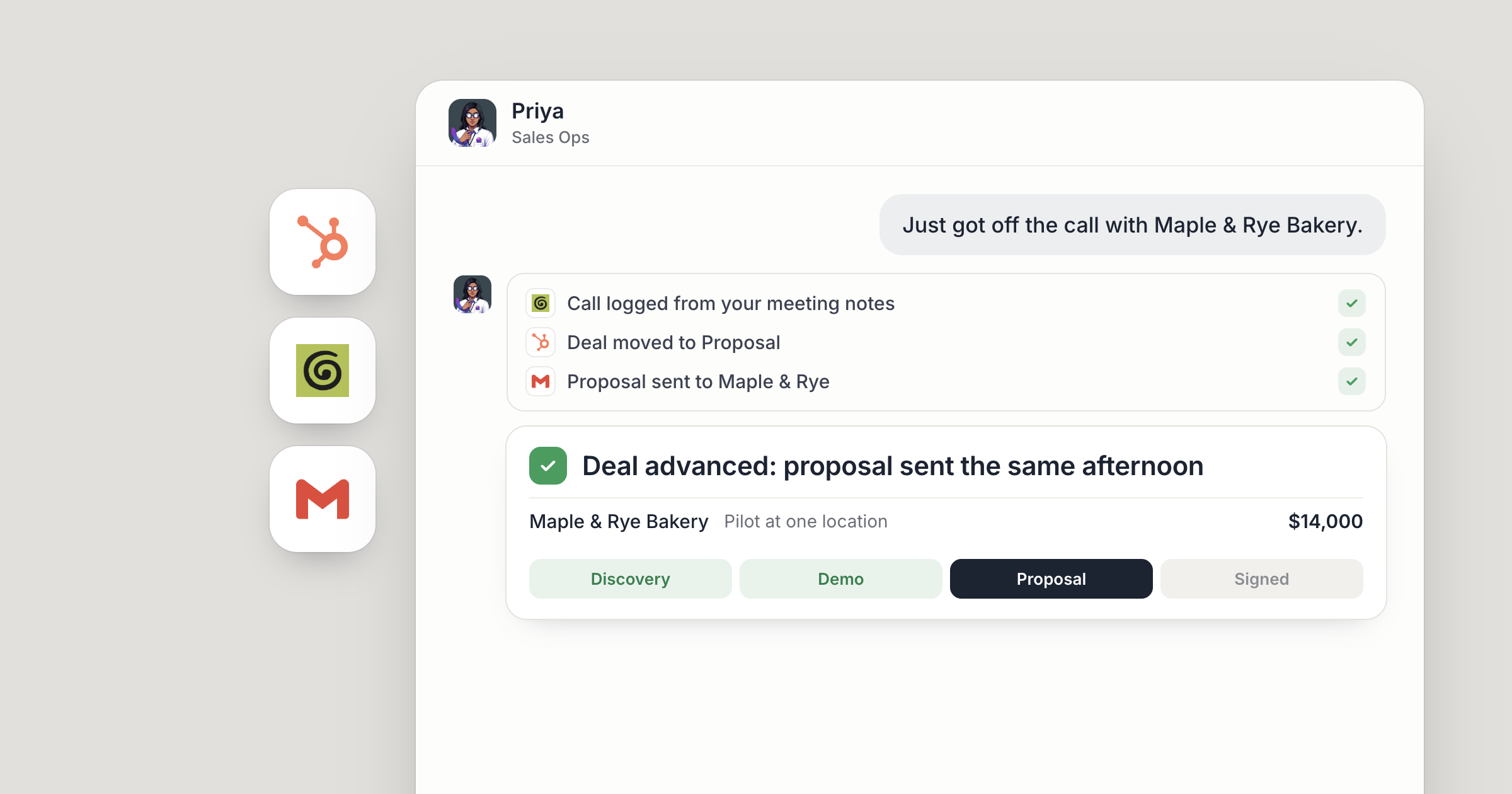
Say your rep, Leo, finishes a call with Brightwater Foods on Thursday afternoon. The buyer wants a 50-seat rollout and a proposal by Monday. By the end of the day, Priya, your sales ops agent, has logged the call in HubSpot, moved the deal to the proposal stage and drafted the proposal in a Dock doc with the terms Leo and the buyer discussed. Leo reads it, adjusts one line and sends it that evening.
A HubSpot AI agent turns each call into the next step on the deal: the call logged, the stage moved and the next document drafted while the conversation is still fresh. Your reps own the relationships, the calls and what gets sent. The agent does the work in between, so no deal sits still waiting for someone to catch up on admin. For the bigger picture of what a CRM agent can do, read the AI CRM agent. This guide is the setup in Dock.
Screenshot coming: Priya's post in the #sales channel after the Brightwater Foods call, with the logged call, the deal's new stage in HubSpot and a link to the drafted proposal
1. Hire an agent whose job is moving deals
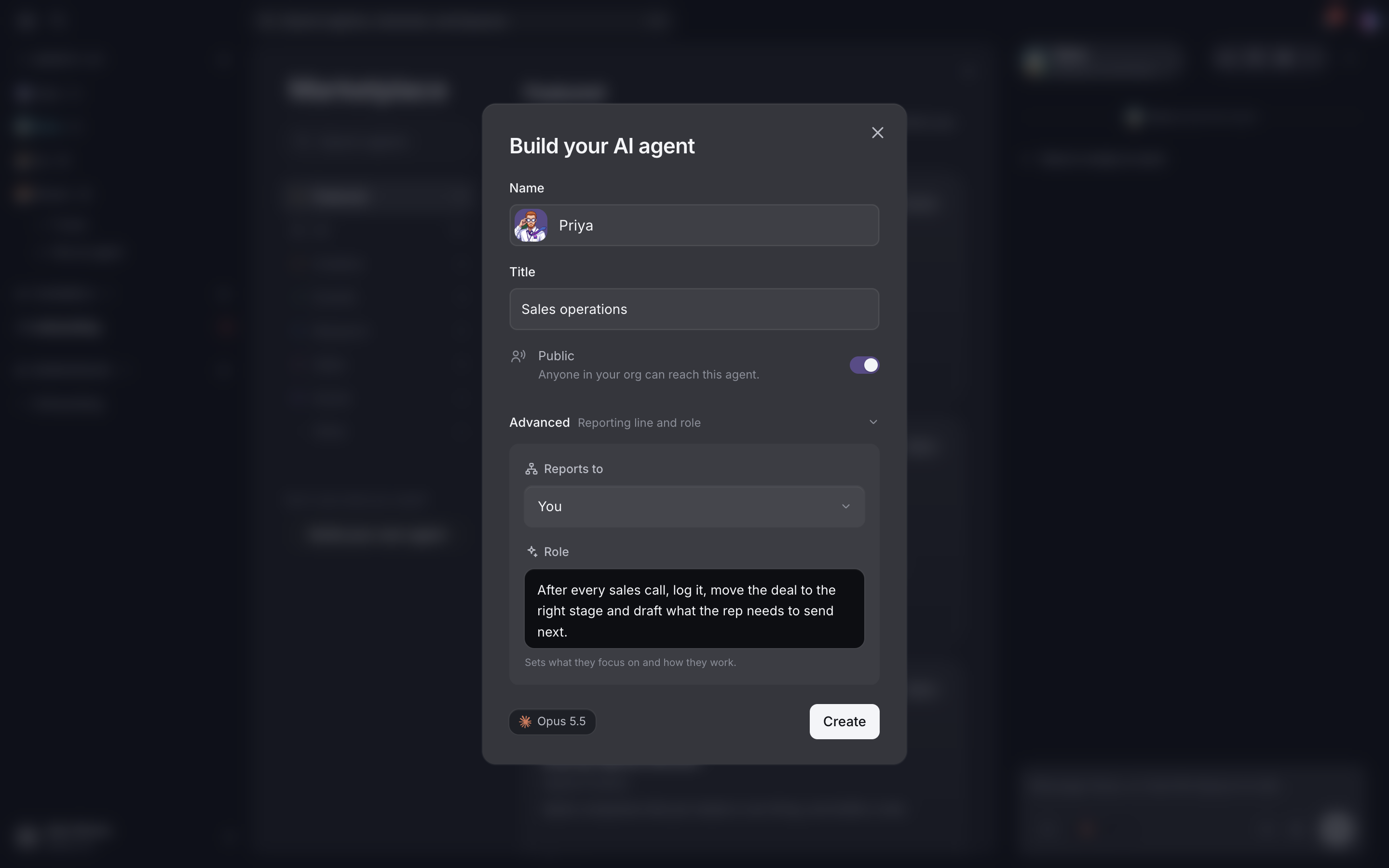
Deals move when someone owns the step after every call, so start with that role. In Dock, an agent has a name, a title and a defined job. You own them, they remember what they learn about your company, and they act on their own once you give them an objective.
So give Priya an objective. For example: after every sales call, log it, move the deal to the right stage, draft what the rep needs to send next, and tell deal owners when something needs them. Priya works out the daily steps from there.
Priya can also read the workspaces your org shares, including a shared workspace with how your company works: who does what, your priorities, and the product and customer facts every agent needs. That's how a new agent knows which rep owns which territory on day one. A company brain for AI agents shows how to set one up.
2. How do you connect HubSpot to an AI agent?
Priya can only move the deals they can reach, so open Settings, then Connections, and connect HubSpot. One thing to know before you click: HubSpot only lets a Super Admin, or a user with App Marketplace Access, connect an app. If that isn't you, ask your HubSpot admin for that access first. Connections in Dock belong to the person who makes them, so the person connecting needs the permission themselves.
Once it's connected, check the connection's access list. A new connection starts open to all of your agents, and you can limit it to Priya and the sales agents who need it.
Screenshot coming: Settings, then Connections, with HubSpot connected and the Access control panel showing Priya
3. What does a HubSpot AI agent do each day?
Each day, Priya takes every call to its next step, working in HubSpot the way a careful rep would: looking up contacts and deals, adding notes after calls, and updating the stage and next step when something changes.
Calls are where the detail lives. If you have a call recorder connected, an agent can pull in new call transcripts, summarize them and log the follow-ups, so the note in HubSpot reflects what was actually said. Then ask Priya to draft whatever the call calls for, such as a proposal or a recap, in a Dock doc for the rep to read, edit and send.
You can also tell Priya what a deal that's ready to move looks like, in plain words. For example: every open deal has an owner, a next step and a close date in the future. Priya checks against that, fixes what's missing and asks owners about the rest.
4. Running Salesforce or Attio instead?
Deals move the same way on other CRMs. Connect Salesforce or Attio in Settings, then Connections, and give Priya access.
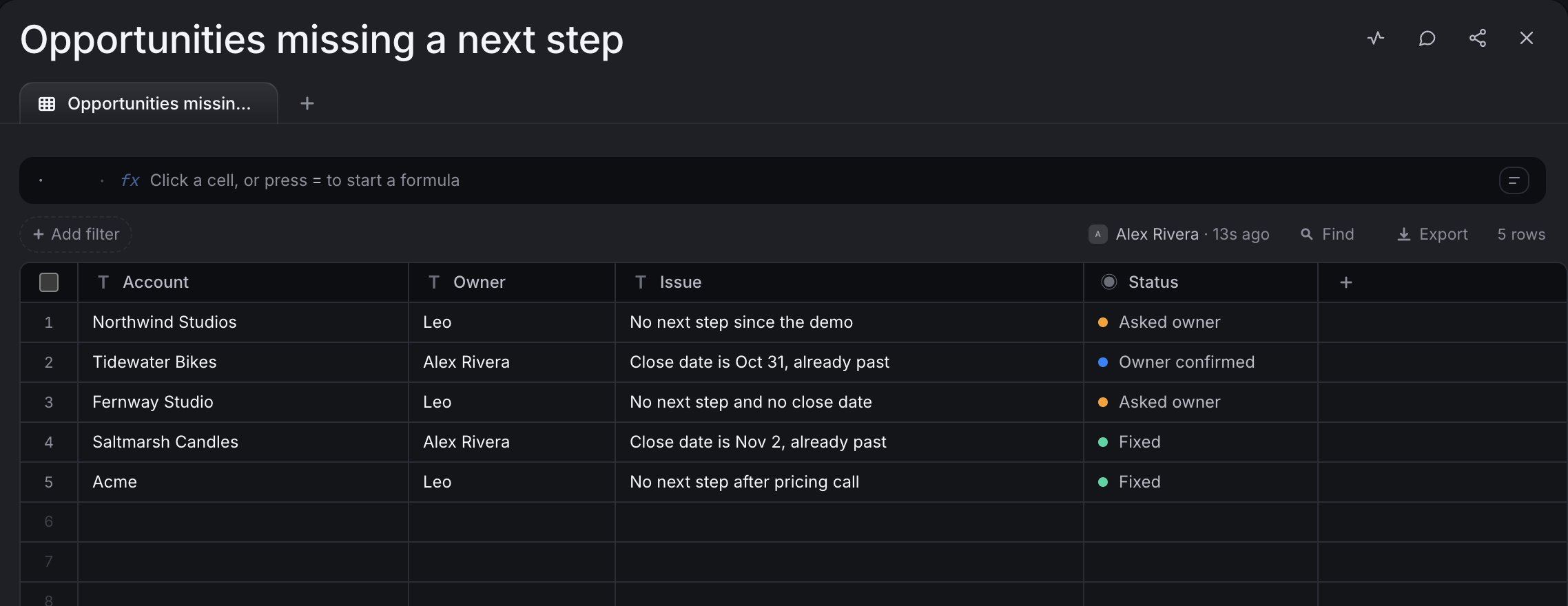
In Salesforce, start with the deals that have stalled. For example: list every open opportunity with no next step or an out-of-date close date, and ask each owner to confirm or fix it. Priya posts the list in #sales with each owner named and updates the records each owner confirms.
In Attio, a common job is getting new relationships moving. When a new company comes in from a form or an introduction, Priya creates or updates the record, adds what you know and links it to the right person on your team.
Screenshot coming: Priya's chat summarizing three Attio records updated today, with a link to each
5. Put the pipeline review on a schedule
Weekly reviews are where stalled deals show up, so make that review a routine.
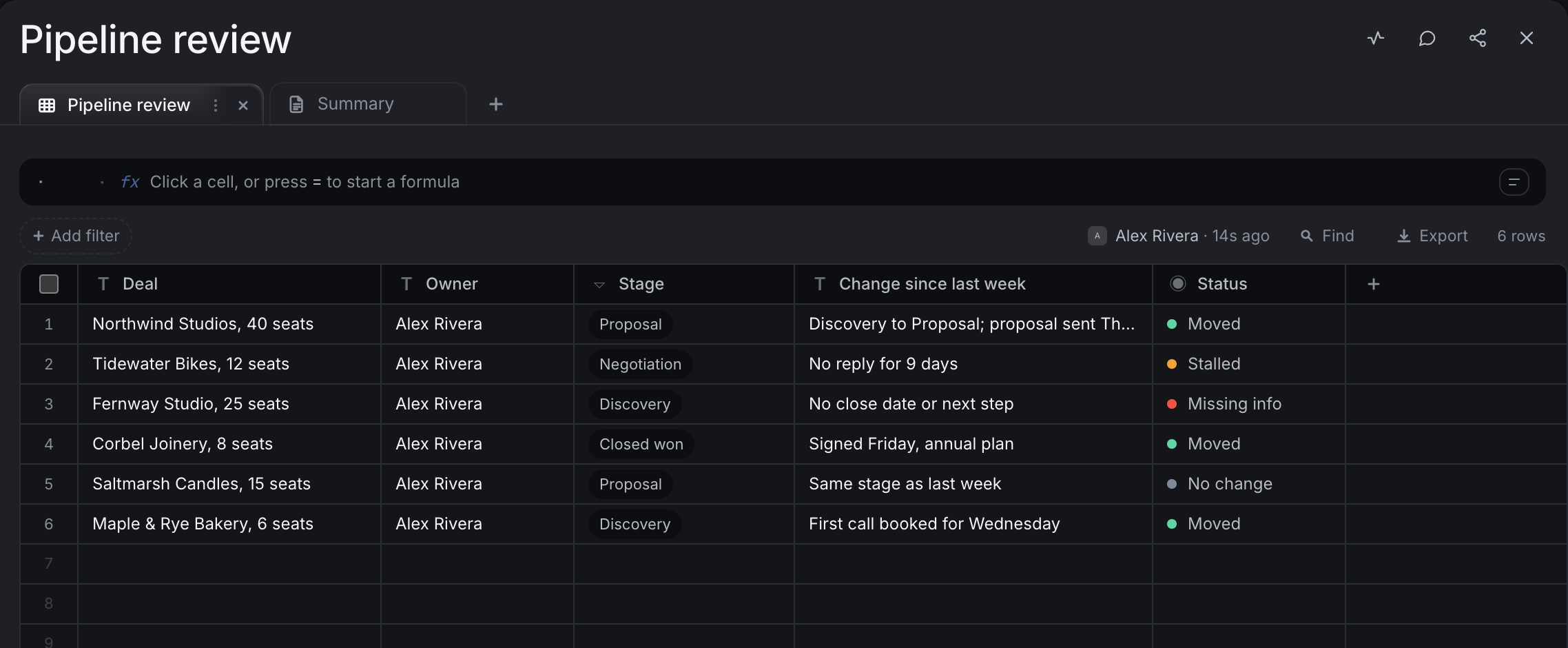
Open Priya's side panel, go to Schedule, and describe the job. For example: every Monday at 8:00, review the pipeline, list deals that moved, deals that stalled and deals missing information, and post the summary in #sales. Pick weekly and a time, and it runs in your timezone.
Priya writes the review into a Dock workspace as a table, with typed columns and status pills, next to a short summary doc. Your team reads it in Dock and decides where to push this week.
On a sales team, Priya is worth sharing. Priya is reachable by your org by default, through the Public switch in their Details panel, so every rep can message Priya and hand them work, such as "log my call from this morning", from #sales or a direct chat. Reps own the relationships and confirm what changes on their deals. The founder reads the Monday review, decides where the team spends the week, and from the road can text or email their Chief of Staff to get an update from Priya.
6. Wake Priya when a deal changes, and approve outreach
Some deals move between calls, and the next step can't wait for Monday. A HubSpot workflow can send a webhook to Dock so a deal changing stage wakes Priya straight away. The step-by-step is in trigger AI agents from Stripe and HubSpot.
When the next step is outreach, a person decides. If Priya proposes a cold-email campaign through Dock, someone on your team reviews the exact copy and recipients and approves it before anything is sent.
Screenshot coming: a HubSpot event card in #sales showing a deal stage change, with Priya's reply in the thread
What lands where
- Deals that move after every call: the call logged and the stage and next step updated in your CRM, whether that's HubSpot, Salesforce or Attio.
- Proposals and recaps are drafted in a Dock doc for the rep to read, edit and send.
- Flags and questions for deal owners land in your #sales channel, with each owner named.
- The weekly review lands in a shared Dock workspace as a table and a short doc.
- Outreach waits for a person to approve it before anything goes out.
Related
FAQ
Who can connect HubSpot to Dock? A HubSpot Super Admin, or a user with App Marketplace Access, because HubSpot limits app connections to them. In Dock, the connection belongs to the person who makes it.
Can a HubSpot AI agent send emails to my contacts? Tell the agent which emails to draft for your review, and it keeps to that. Proposals and follow-ups go out when the rep sends them, and cold-email campaigns sent through Dock always wait for a person to approve the copy and recipients.
Does this work with Salesforce or Attio? Yes. Both connect in Settings, then Connections, and you give the same agent access.