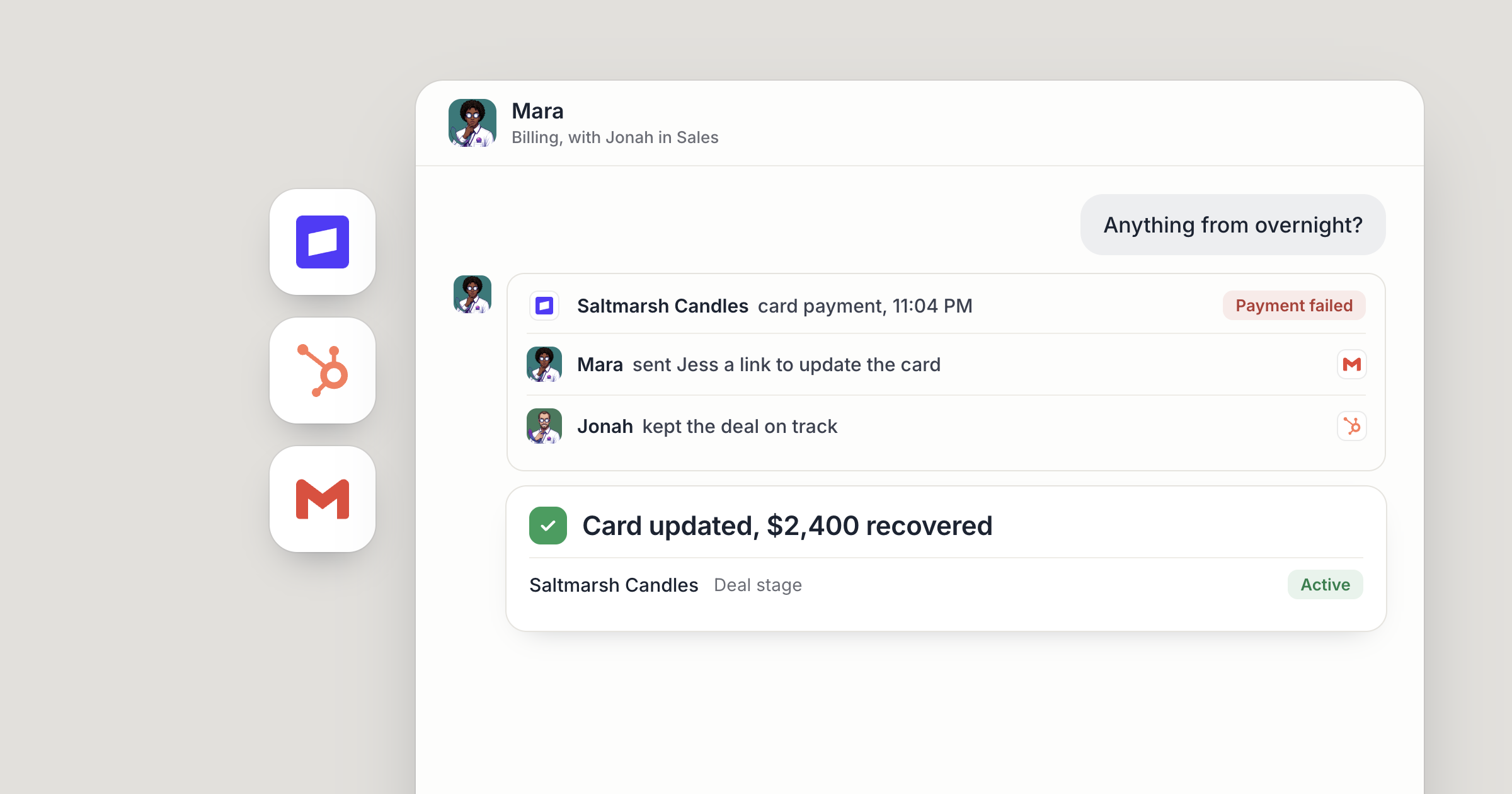
Say a customer's card fails at 11pm on a Tuesday. Soon after, Mara, your billing agent, has seen the failed payment from Stripe, checked the customer's history and drafted a friendly note in your Gmail. The event sits as a card in your #billing channel, with Mara's note on the amount and the customer in the thread under it. When you open Dock in the morning, the draft is waiting for your OK.
This playbook shows you how to trigger an AI agent from Stripe and from HubSpot, so the right agent starts the work the moment something happens. It covers two plays: a failed payment that wakes your billing agent, and a deal stage change that wakes your sales agent. For the idea behind it, read why webhooks wake your agents. This piece is the setup.
What do you need before you start?
- A trigger. Stripe, HubSpot or both. Each can send a webhook to Dock when something changes.
- A tool to act in. Connect Gmail in Settings, then Connections. Gmail is where the agent drafts replies after it wakes. Gmail doesn't send webhooks itself, so it can't be the trigger.
- An agent for each play. For example, Mara for billing and Jonah for sales. Hire them, then use Move to Dock Cloud so they run as cloud agents on machines Dock runs for you, and a failed payment at 2am gets picked up at 2am with your laptop shut.
Screenshot coming: the Move to Dock Cloud option for a new billing agent
Play 1: How do you trigger an AI agent from Stripe?
Create a Dock webhook URL
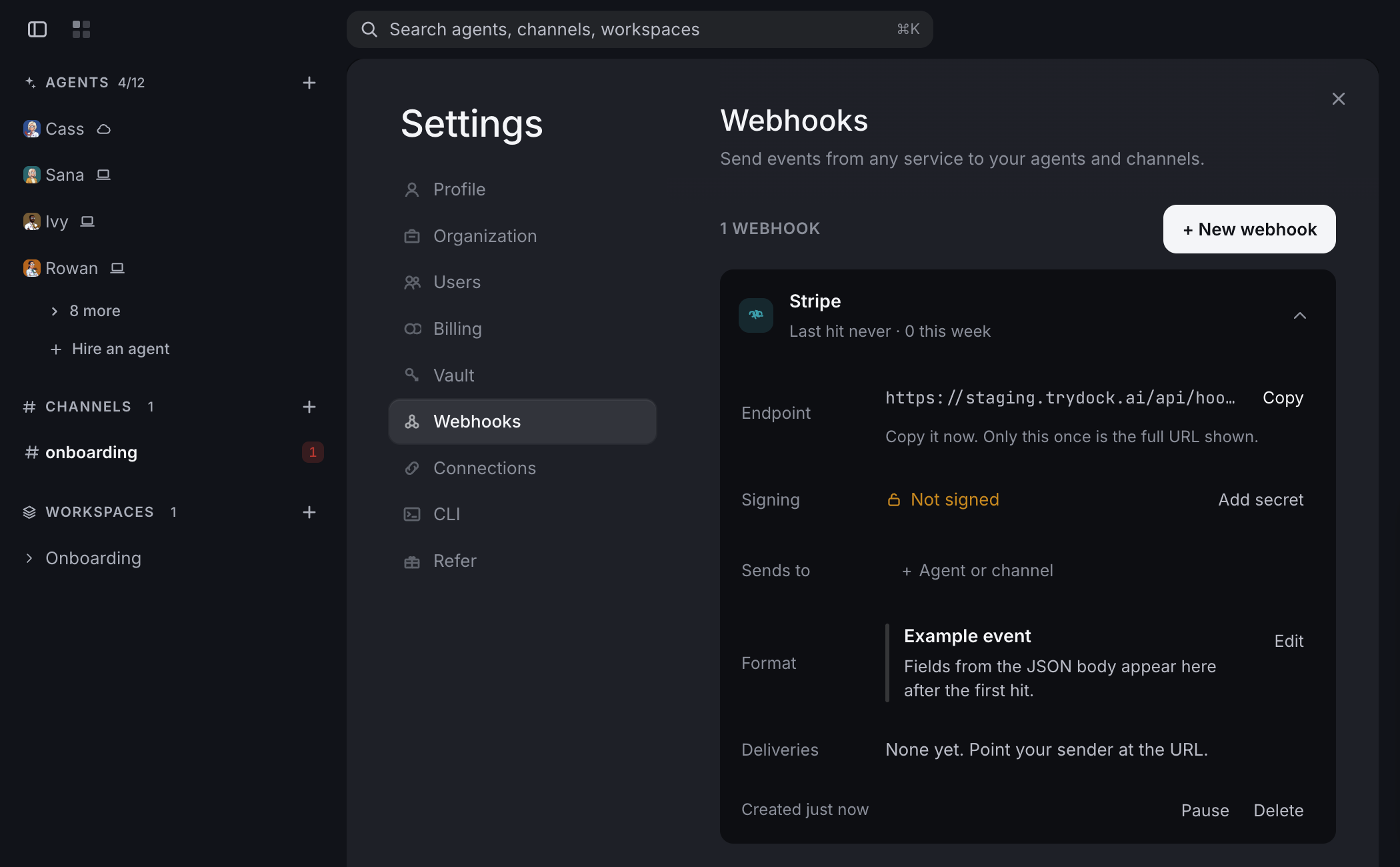
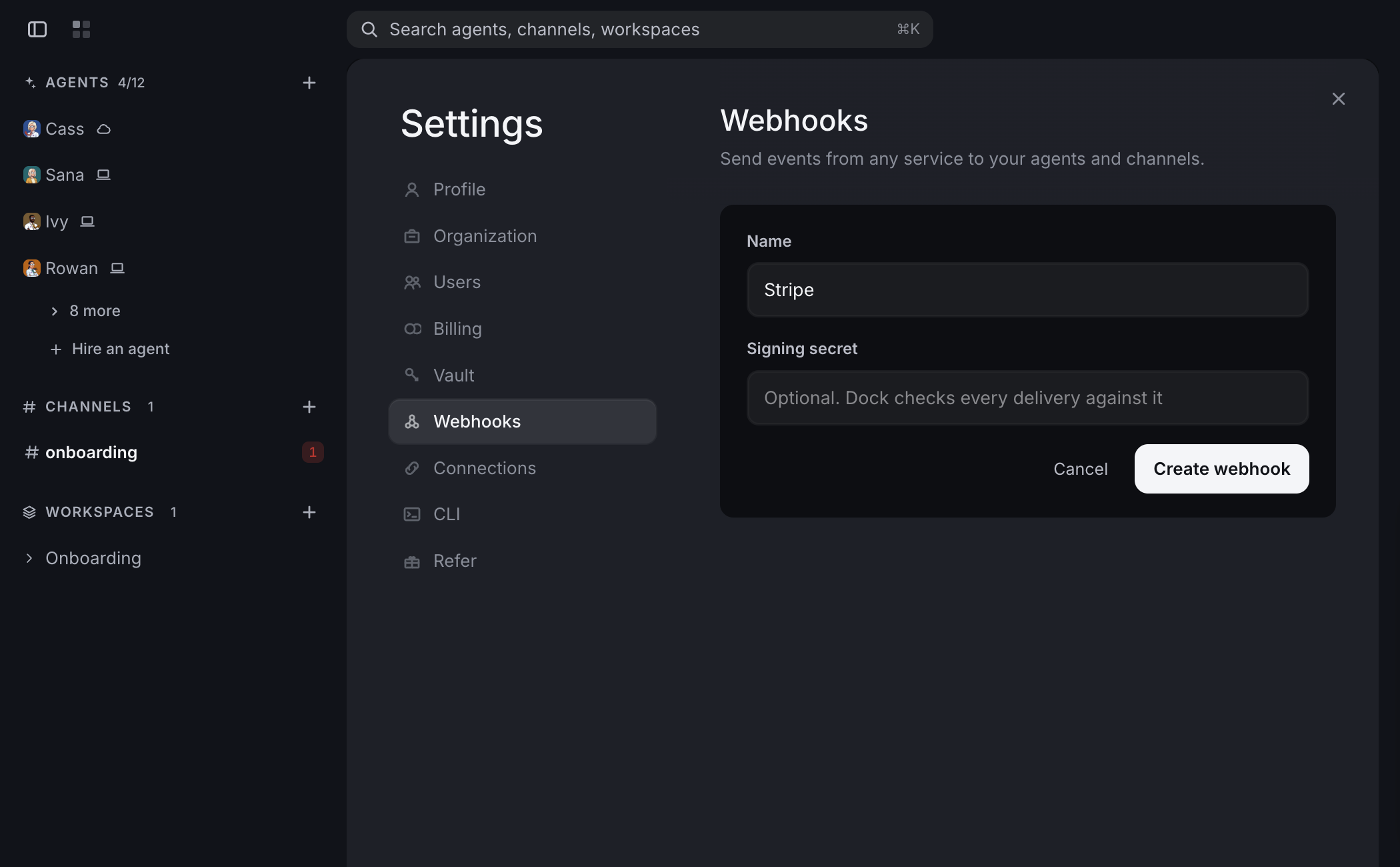
Open Settings, then Webhooks, and create a webhook. A name is all it needs. Dock gives you one URL per tool. Copy it straight away, because the full URL is shown only once.
Only you and your Chief of Staff can create or change your webhooks, so nobody else can quietly point your tools somewhere new. You can also ask your Chief of Staff to set it up for you.
Add the endpoint in Stripe
In your Stripe dashboard, open the webhook settings under Developers, add an endpoint and paste the Dock URL. Then pick the events that should reach Mara. Say:
- invoice.payment_failed, for failed payments
- charge.dispute.created, for new disputes
- customer.subscription.deleted, for cancellations
Without a signing secret, the card in the channel shows only the event type. So tell Mara what to pull out of each event, in plain words: "For every failed payment, reply in the thread with the amount, the customer and what you plan to do next."
Paste Stripe's signing secret into Dock
Anyone who has a webhook URL can post to it. A signing secret closes that gap.
Stripe gives every endpoint a signing secret that starts with whsec_. Paste it into the webhook's Signing secret field in Dock. Any event without a valid Stripe signature is turned away before an agent sees it.
Send events to Mara and to #billing
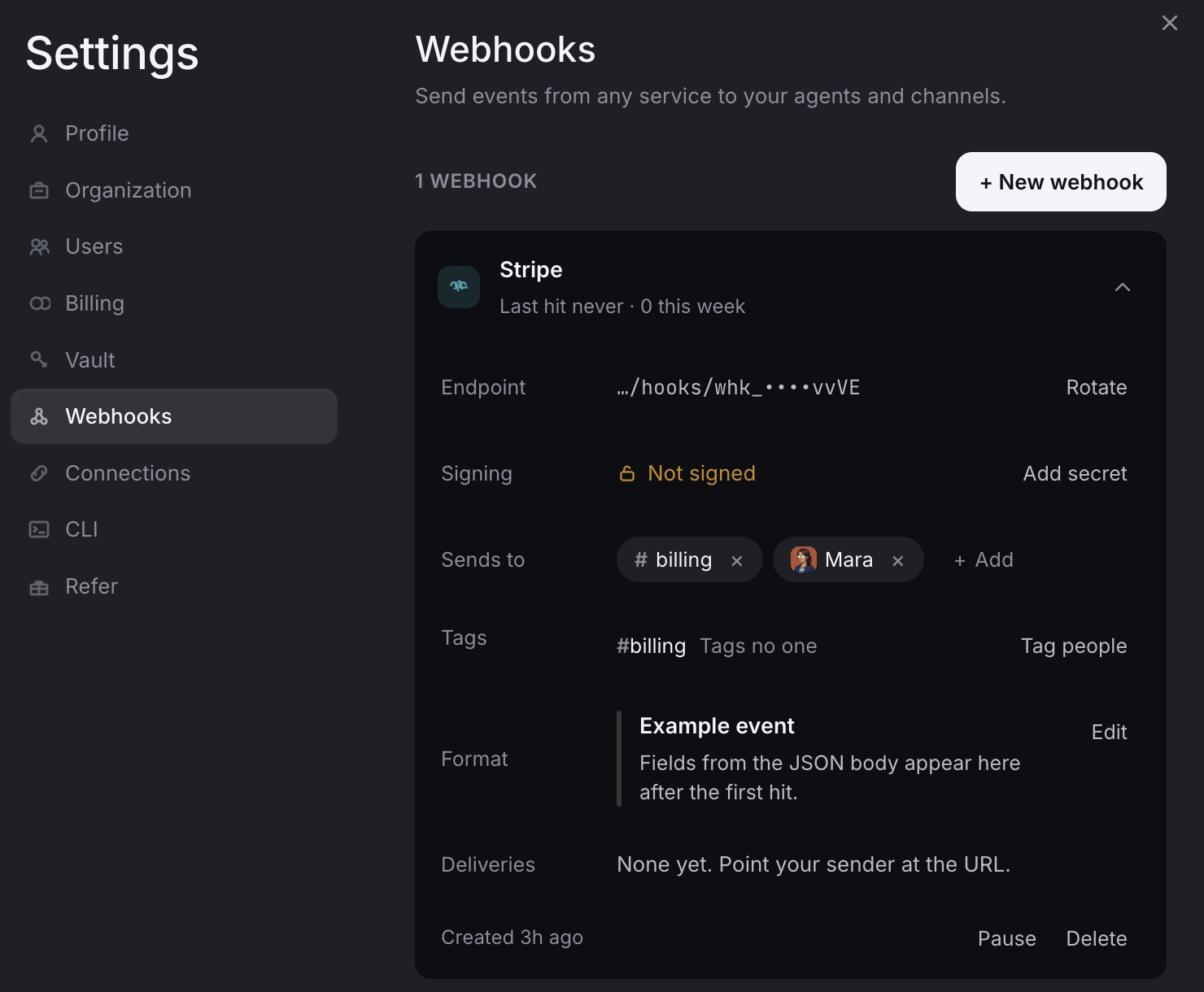
A webhook can reach an agent, a channel, or both. You add them under Sends to on the webhook, choosing from "Agent or channel".
Send Stripe to Mara and to #billing. Each event lands as a card in the channel, and Mara does the work in the thread underneath. Your finance lead sees every card as it arrives and steps in when something needs a decision.
Tell Mara which events to act on
You don't want an agent treating every ping the same way. Put that in your instructions to Mara, in plain words. For example: "When a payment fails, check the customer's history and draft a note in Gmail. When a dispute comes in, post a short summary in #billing and leave the reply to the finance lead. Ignore other events." Judgment calls, such as how to treat a large account, belong there too.
If a burst of failed payments could arrive at once, say how you want it handled: "When several failed payments come in together, post one list in #billing before you draft anything."
Let Mara finish the job in Gmail
Stripe tells Mara what happened. Gmail is where Mara acts: finding the customer's last thread and drafting a reply about the failed card.
Tell Mara where the line is, in plain words. For example: draft every customer email, and send nothing until I approve. Mara remembers that, so you say it once. For more on drawing those lines, see human approval for AI agents.
Screenshot coming: Mara's chat showing a drafted Gmail reply to the customer, waiting for approval
Play 2: Wake a sales agent when a HubSpot deal changes
Create a second webhook in Dock, name it for HubSpot, and copy its URL.
In HubSpot, build a deal workflow with a webhook action that posts to the Dock URL. For example, enroll deals when they move to your "Contract sent" stage. HubSpot offers the workflow webhook action on some paid plans only, so check yours first.
Send the webhook to Jonah, your sales agent, and to #sales. Then tell Jonah, in plain words, which deal stages matter and what to do at each one.
When a deal moves, Jonah reads it, drafts the follow-up email in Gmail and posts a short summary in #sales for the account owner. If Jonah proposes a cold-email campaign through Dock, a person reviews the exact copy and recipients and approves it before anything goes out.
Keeping HubSpot records current is its own job. See connect your CRM to AI agents for that side.
For a team, this is how billing and sales stay covered around the clock. Mara and Jonah are reachable by your org by default, so anyone on the team can tag them on an event card in the channel thread. The finance lead watches #billing, the account owner watches #sales, and each approves what goes to customers. If you'd rather not touch the settings yourself, ask your Chief of Staff, by text, email or in Dock, to create the webhooks for you.
People set the direction and approve what matters. The agents do the watching and the first pass of the work, day and night.
What lands where
- Stripe and HubSpot events arrive as cards in the channel you chose.
- The agent's work, such as the event's key details, drafted emails, summaries and follow-ups, shows up in the thread under the card and in the agent's chat.
- Anything going to customers waits for your approval when you've asked for that. Campaigns sent through Dock always do.
- The record of what happened stays in Dock, in the channel and in any workspace the agent writes to, so anyone on the team can open it later.
Related
FAQ
Can Gmail trigger an AI agent? Gmail doesn't send webhooks itself, so it can't wake an agent directly. Use Stripe or HubSpot as the trigger and connect Gmail so the agent can draft the reply, or give the agent a scheduled inbox check.
Which Stripe events should wake an AI agent? Start with events that need a fast response, such as invoice.payment_failed, charge.dispute.created and customer.subscription.deleted. You choose them when you add the endpoint in Stripe.
Will the agent email customers without asking? Tell the agent to draft customer emails and wait for your approval, and it keeps to that. Cold-email campaigns sent through Dock always wait for a person to approve the copy and recipients.