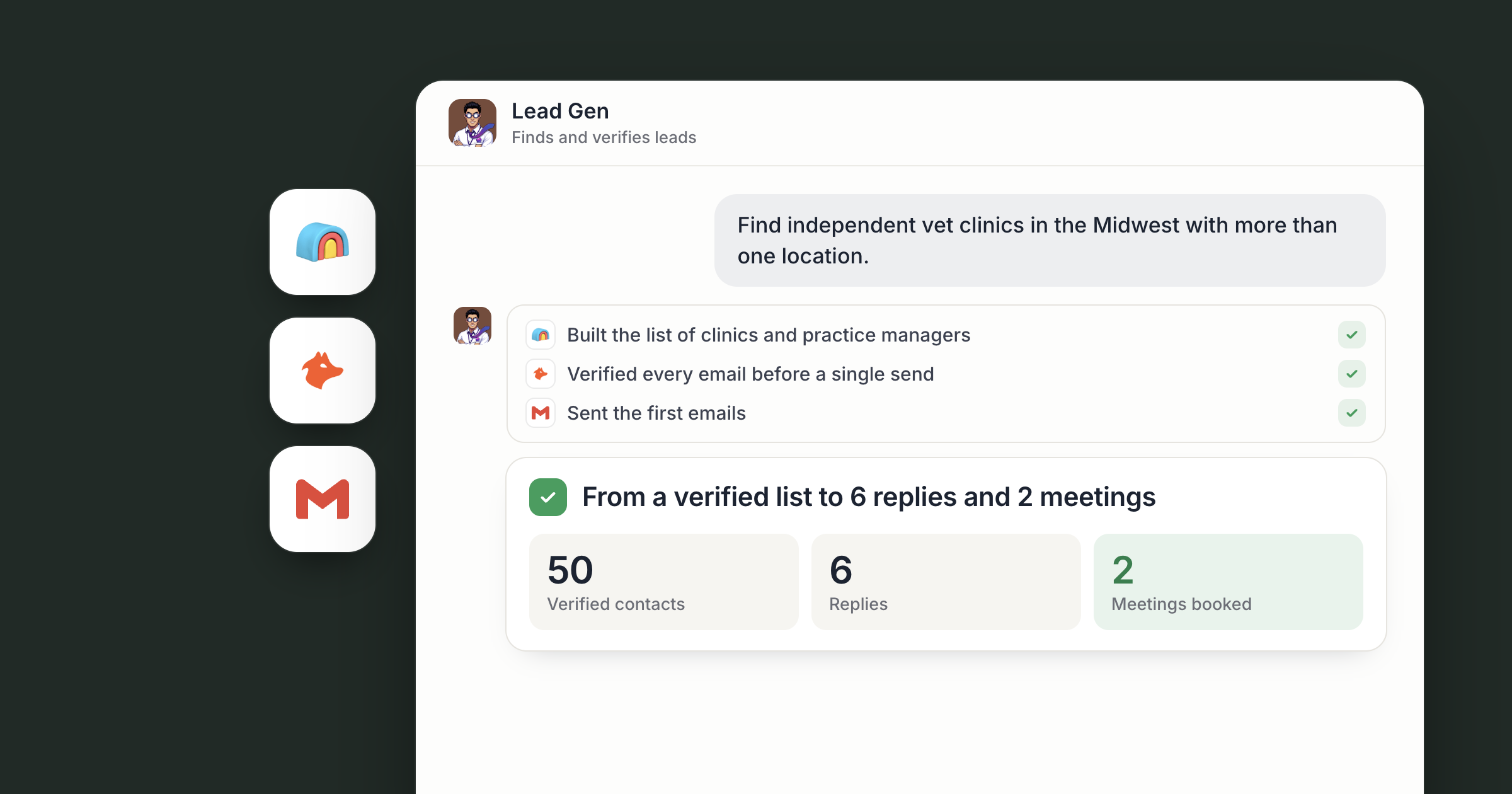
Say you sell scheduling software to independent veterinary clinics. On Monday morning, a fresh table is waiting in your Pipeline workspace: clinics that match your ideal customer, the owner or practice manager at each one, a work email checked for deliverability, and a line on why each clinic fits. You open it with your coffee and pick who your team contacts this week.
That is a verified B2B lead list, and in Dock a business agent builds it for you. Hire Lead Gen from the Marketplace, tell them who your best customers are, and they research companies, find the right people and check every email before the list reaches you. You decide who makes the cut and who gets contacted.
For the wider case for prospecting with agents, read AI agents for lead generation. This piece is the step-by-step.
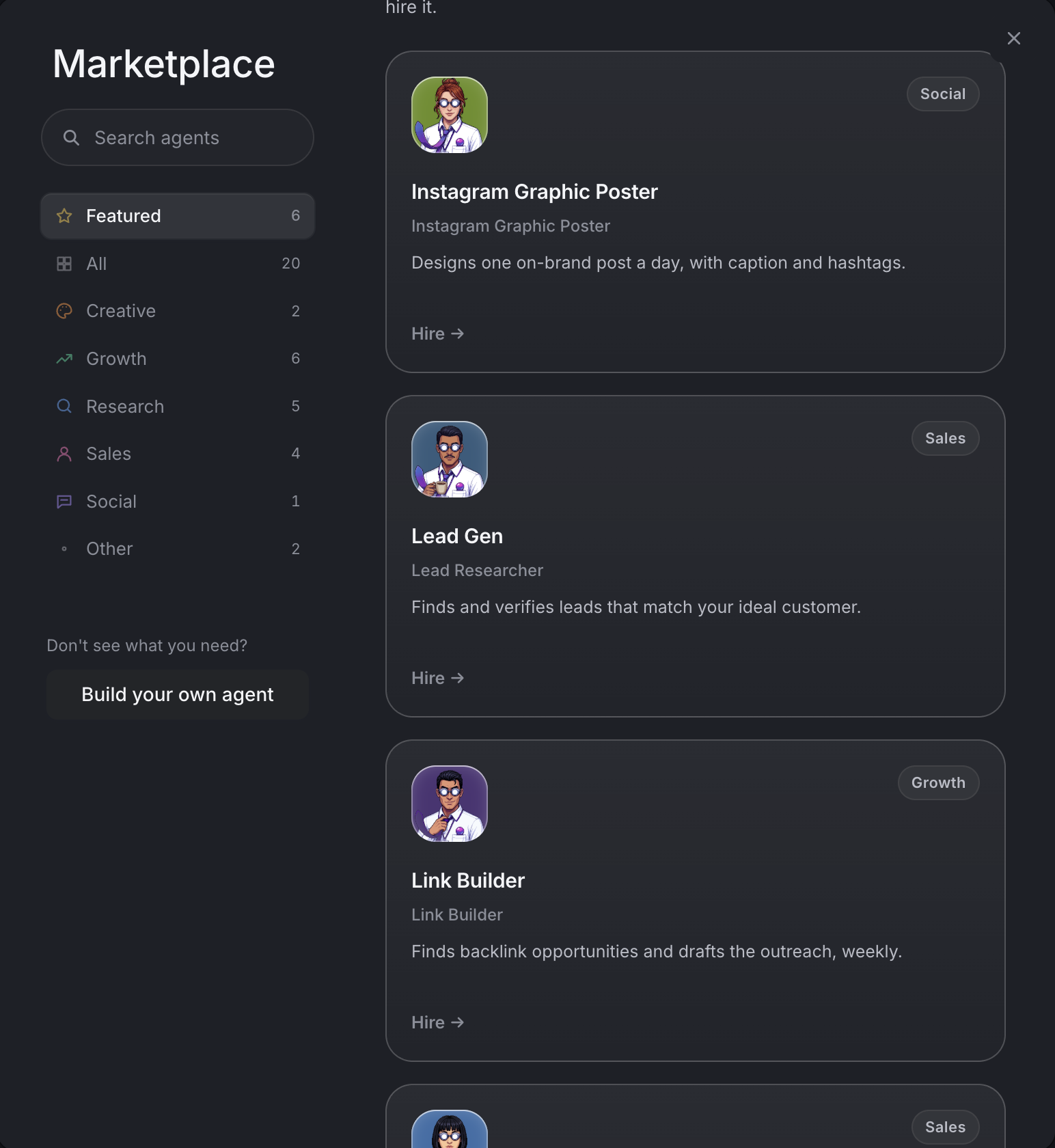
Step 1: Hire Lead Gen and describe who you sell to
Lead Gen's Marketplace card reads "Finds and verifies leads that match your ideal customer." Hire them and they open a chat, introduce themselves and arrive already briefed. Hiring a ready-made agent covers how that works, and your Chief of Staff can make the hire for you.
Then describe your ideal customer in plain words: industry, size, location, the job title that signs, and the signals that make a company a good fit. For example: "Independent vet clinics in the Midwest with more than one location. We want the owner or the practice manager."
Screenshot coming: Lead Gen's first chat message introducing themselves, with the owner's reply describing the ideal customer.
Step 2: Start the research in Clay
Clay works with Dock in two ways. If your team already has a Clay account, connect it under Settings, Connections. Lead Gen can then research companies and contacts, run Clay's enrichment and bring back prospect data, so the research your team has already done becomes the starting point.
No Clay account? Clay's company and people lookups are also one of Dock's paid tools. The agent runs them directly, billed in your Dock credits, with nothing to sign up for.
A new connection starts open to all of your agents, and you can limit it to specific agents. The Help article on the tools your agents can use explains how connections work.
Step 3: Fill in the company picture with People Data Labs
A name and a website are a start. To judge fit, the agent needs the facts behind them. Ask Lead Gen to enrich each company with People Data Labs, which matches a company by name, website, LinkedIn page or stock ticker and returns firmographics, funding, employee counts, tech stack and social profiles, with a confidence score on the match.
This is where companies outside your profile drop off before you see them. Too small, wrong region, already using a tool you replace: the agent filters on the criteria you gave them and notes why each company stayed or went. If a reason looks wrong, say so in chat and the filter changes on the next pass.
People Data Labs is another of Dock's paid tools, run the same way.
Screenshot coming: A table tab in the Pipeline workspace with company rows and columns for industry, headcount, location and a fit note.
Step 4: Find the right people with Hunter
A company becomes a lead once you know who to write to. Hunter domain search lists the email addresses found for a company's domain, with sources and a confidence score for each. Hunter's email finder takes a person's name and company and returns their most likely address.
Say your profile names the practice manager as the buyer. The agent looks for that role at each clinic, finds the person and finds their address. Where Hunter's confidence is low, the row says so, and a guess never passes for a fact.
Hunter is a paid tool in Dock as well, so your team doesn't need its own Hunter account.
Screenshot coming: The same table with new columns for contact name, title, email and Hunter's confidence score.
Step 5: Check every email to make it a verified B2B lead list
This step is what makes the list verified. Hunter's email verifier checks whether an address is deliverable and returns a full breakdown of the check. The agent runs it on each email and records the result in the table.
Deliverable addresses go through. Risky ones are flagged for you to judge. Addresses that won't deliver are dropped, or kept with a note when the company is worth reaching another way. Bad addresses stay out of your outreach, and your sending reputation stays protected.
Screenshot coming: The table with a status pill column showing deliverable, risky and undeliverable, filtered to deliverable rows.
Step 6: Review, approve and keep the list growing
The finished list lives in a table in a shared workspace, so everyone who needs it can open it. Sort it, filter it, or tell Lead Gen in chat what to change: "Drop clinics with a single vet" or "Add dental practices in the same states."
Then make it repeat. Tell Lead Gen how often you want new leads, for example every Monday, and ask them to run the same steps each time: Clay for research, People Data Labs for fit, Hunter for contacts and verification. New rows land in the same table, so the list grows without anyone rebuilding it.
You set the direction and decide who gets contacted. The agent does the research, the lookups and the checking, and shows their work in every row. When the list is ready to work, connect your CRM so approved contacts move into your pipeline.
Across a team, the list is a shared asset. Lead Gen is reachable by your org by default, so anyone in sales can ask for a new segment, with the rows landing in the same Pipeline table everyone works from. The founder sets the ideal customer, the sales lead decides who gets contacted, and any email campaign still waits for a person's approval. When a list idea comes to you on the road, text or email your Chief of Staff and they hand it to Lead Gen.
Screenshot coming: Lead Gen's chat with a short summary of the latest run and a link to the updated table.
What lands where
- The lead list: a table in your shared Dock workspace, one row per contact, with company facts, a fit note, the email and its verification status.
- Run summaries: in your chat with Lead Gen, linking to the rows that changed.
- Your Clay research: stays in your Clay account when you connect it.
- Lookups: Clay paid-tool lookups, People Data Labs and Hunter, all run from Dock as paid tools.
Related
FAQ
What is a verified B2B lead list? A list of business contacts where every email has been checked for deliverability before anyone writes to it. In Dock, the agent records the result of that check on each row.
Do I need my own Hunter or People Data Labs account? No. Both run as paid tools inside Dock, so your team doesn't need its own accounts.
Will the agent email leads without asking? Sending an email campaign waits for a person to approve it. The agent builds and checks the list, and your team decides who gets contacted.