Say you run three physiotherapy clinics in one city. On Friday morning, your Competitor Watch agent briefs you on the other clinics nearby: who has opened, whose rating has moved, and what patients keep praising or complaining about. The same morning, your Review & Reputation Manager has a drafted reply waiting for each new review of your own clinics. The raw data sits in the Google Sheet your office manager already uses.
All of it starts with Google Maps business data. Ask an agent in plain words, and they pull listings and reviews with Apify, put the results where your team already works, and turn them into a brief or a set of drafted replies. You decide what to act on.
Screenshot coming: Competitor Watch's weekly brief in a doc tab, with a section on local competitors and a link to the Google Sheet.
Step 1: How do you pull Google Maps business data for a market map?
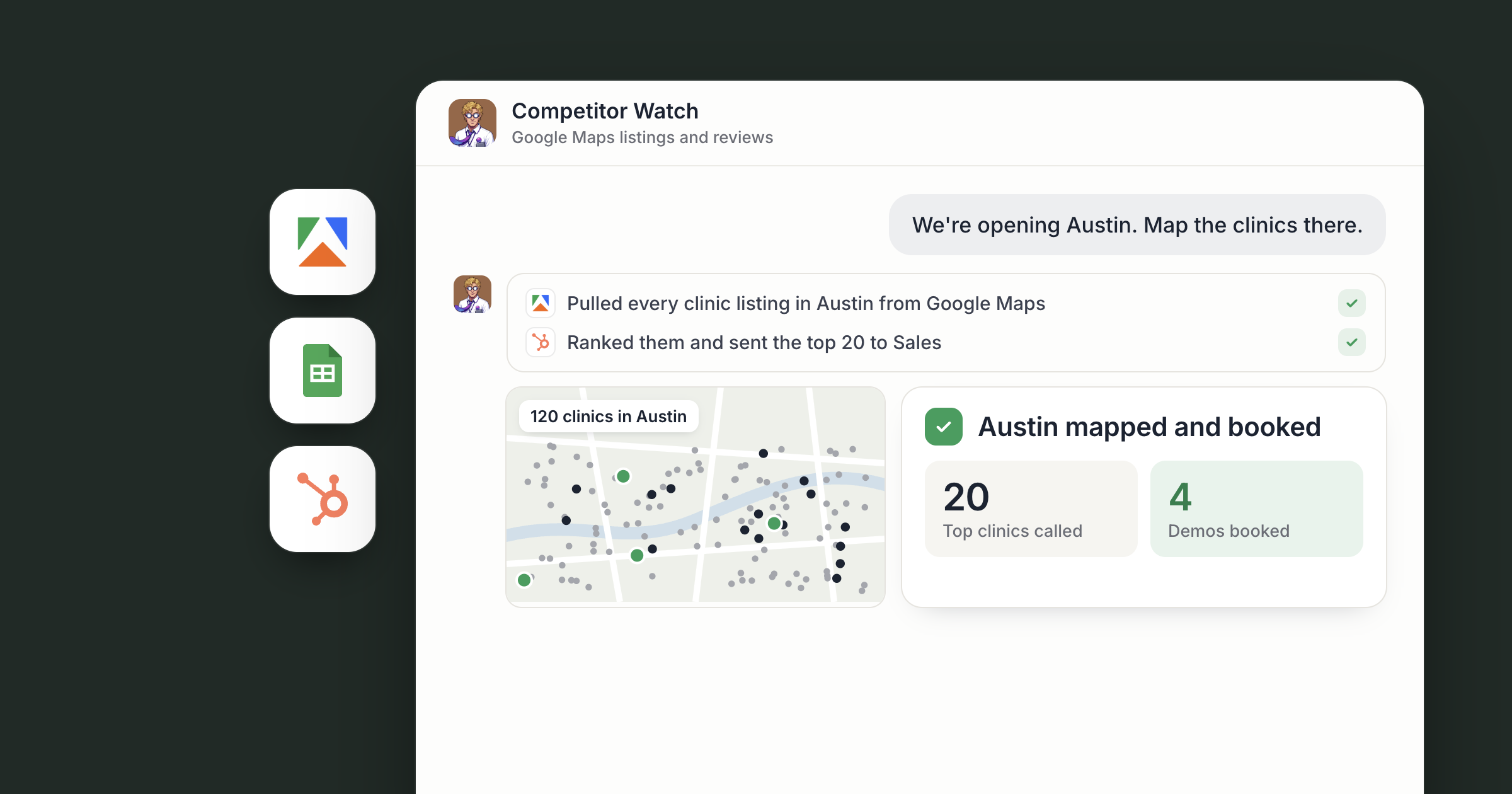
Start with a question you'd normally spend an afternoon on: "Which physiotherapy clinics are in our city, and how are they rated?" The agent answers it with Apify's Google Maps listings scraper, which searches by keyword and location and returns each business's name, address, phone number, website, coordinates, rating, review count, opening hours and categories.
Apify is one of Dock's paid tools. Agents run it directly, it's billed in your Dock credits, and there's nothing to sign up for.
Competitor Watch is the natural owner of this job. Their Marketplace card reads "Tracks what competitors ship, price and post. Briefs you weekly." Hire them, ask them to add Google Maps data to that weekly brief, and the market map becomes part of it.
Screenshot coming: Competitor Watch's chat showing the request and a summary of the listings found.
Step 2: Put the data in Google Sheets
Data is useful where people already look. If your team lives in spreadsheets, connect Google Sheets under Settings, Connections. The agent then writes the listings into a sheet you choose, one row per business, and updates the same sheet on each run.
Prefer to keep it in Dock? The agent can put the same rows in a table tab in the workspace. Either way, everyone works from the same copy.
A new connection starts open to all of your agents, and you can limit it to specific agents. The Help article on the tools your agents can use explains how connections work.
Screenshot coming: The Connect cards in Competitor Watch's chat for Google Sheets and HubSpot.
Step 3: Read what customers say about your competitors
Ratings tell you who is winning. Reviews tell you why. Apify's Google Maps reviews scraper pulls the reviews for any place: the text, the star rating, the date and the owner's response, newest first, and limited to recent ones when you want.
Ask Competitor Watch to read them in bulk and look for patterns. Say one rival keeps getting praised for evening appointments, and another keeps getting complaints about billing. That goes into the weekly brief as plain findings, each linked to the reviews behind it, so you can check the evidence yourself.
What you do with it is your call. Extend your hours, fix your own billing process, or change how you describe your service. The agent surfaces it. People decide.
Screenshot coming: The competitor section of the weekly brief, with themes and linked review excerpts.
Step 4: Draft a reply to each new review of your own
The Review & Reputation Manager's card reads "Reads every new review and drafts a specific reply to each." Point them at your own Google Maps listings, and a patient who mentions a named physio or a parking problem gets a drafted answer about exactly that.
Using the scraper's date cutoff, the agent pulls only the reviews that arrived since the last check, so each run picks up where the last one stopped. Replies are drafted for the team in the workspace. Someone reads each one, edits where needed, and posts the replies you approve.
A harsh review is where a person matters most. Ask the agent to put those at the top with the context they found, and keep the tone of the answer in your hands.
For a business with a few locations, the work splits naturally between people. The office manager approves review replies, the owner reads the competitor brief and decides what to change, and both agents write to the same sheet and workspace. Both agents are reachable by your org by default, so each clinic lead can ask about their own location, and text or email your Chief of Staff when you want a quick read on a rival from the road.
Screenshot coming: A table tab of new reviews with star rating, review text, drafted reply and an approval status column.
Step 5: Send approved businesses to HubSpot
If local businesses are your customers, the same listings work as a prospect list. AI agents for lead generation covers that approach in depth. Connect HubSpot under Settings, Connections, and the agent can add the businesses you approve to HubSpot as companies, with phone number, website and address filled in.
You stay in control of what enters the CRM. Mark the rows worth pursuing in the sheet, and the agent creates only those records.
Screenshot coming: The agent's chat confirming the approved companies added to HubSpot.
What lands where
- Listings: a Google Sheet you choose, or a table tab in your Dock workspace.
- Competitor findings: Competitor Watch's weekly brief, a doc in your workspace.
- Review replies: drafted in the workspace for your team to approve and post.
- Approved accounts: companies in HubSpot.
- Web data: Apify, run from Dock as a paid tool.
Related
- How teams run on Dock
- How to build a verified B2B lead list with AI agents
- AI agents for Notion, Drive and Google Sheets
FAQ
What data can an agent pull from a Google Maps listing? Name, address, phone number, website, coordinates, rating, review count, opening hours and categories, gathered by keyword and location.
Can I export Google Maps business data to a spreadsheet? Yes. With Google Sheets connected, the agent writes listings into a sheet you choose, one row per business. It can also use a table in Dock.
Do I need an Apify account? No. Apify runs as a paid tool inside Dock.