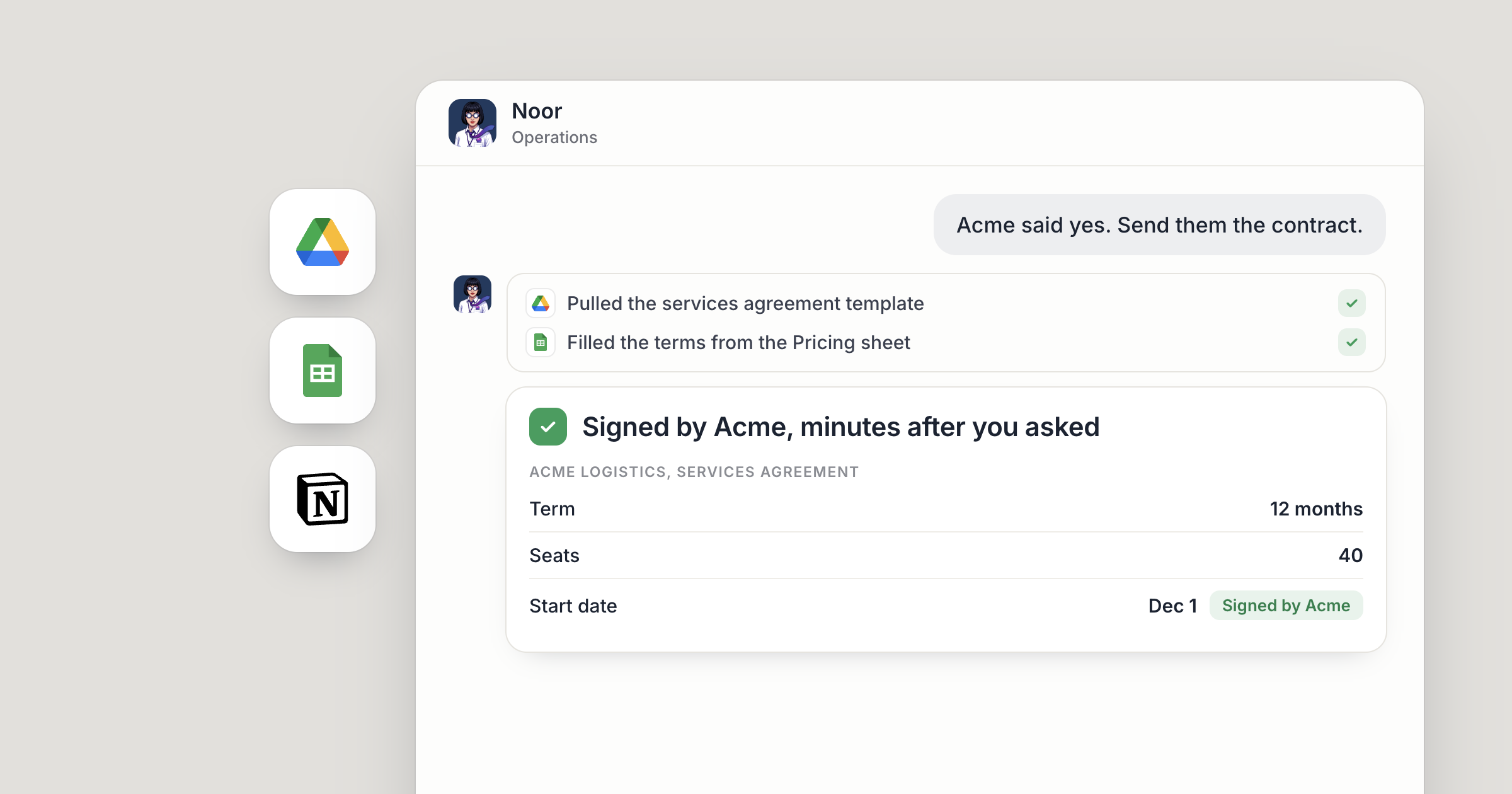
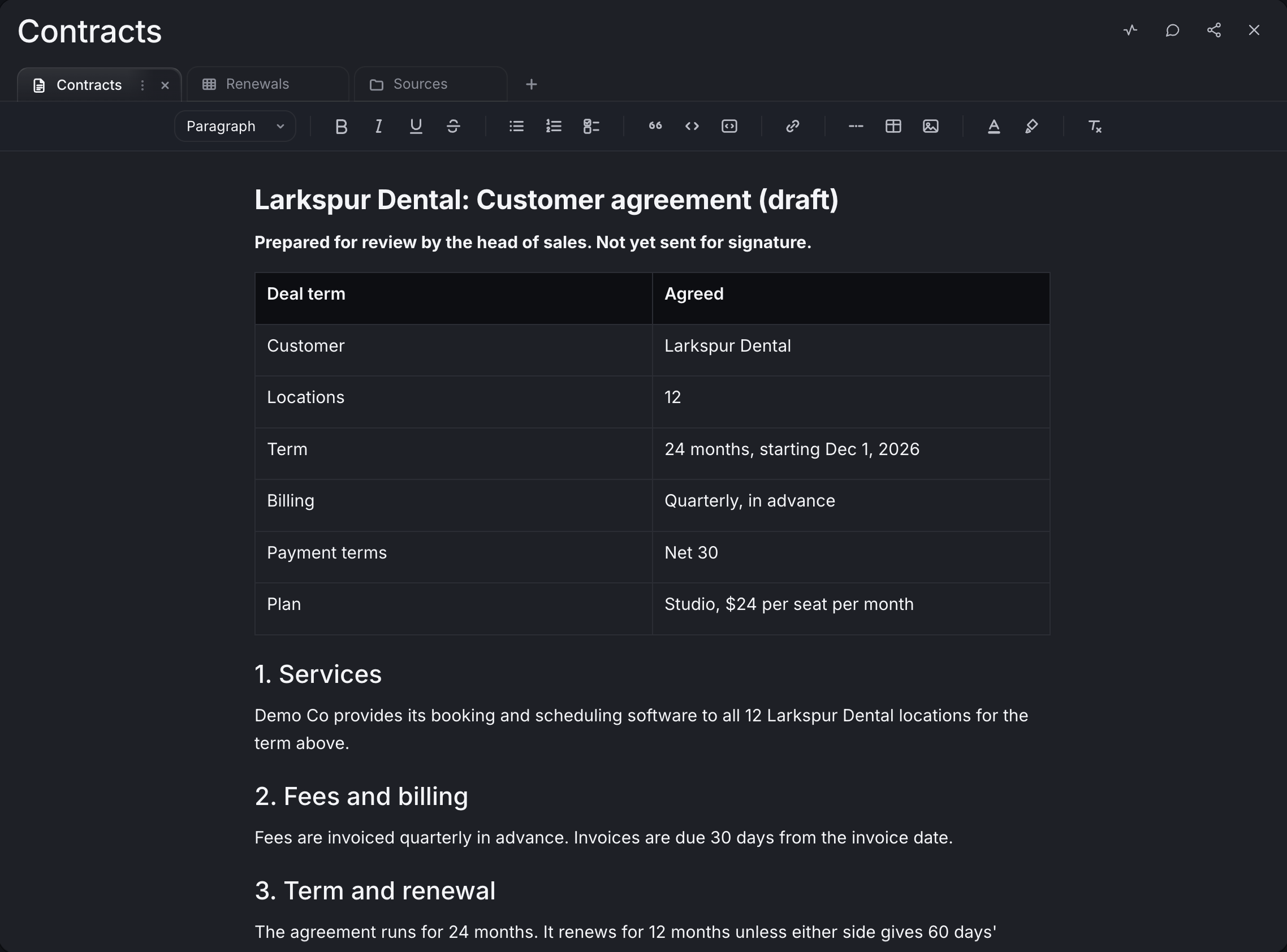
Say your head of sales agrees a deal with Larkspur Dental on Tuesday morning: 12 locations, a two-year term, billed quarterly. Minutes later, Noor, your operations agent, has pulled the current contract template from Google Drive, filled in the terms from the deal notes in Notion and logged the contract in the Google Sheet your finance team uses. Your head of sales reviews it and sends it for signature before lunch.
That's an AI agent for Google Sheets, Notion and Drive doing the work between a yes and a signature. It works inside the same accounts your team uses, with the access you grant. People agree the terms, review the contract and send it. Noor does the assembly in between, and the record lands where finance already looks.
Screenshot coming: Noor's chat in Dock confirming the Larkspur Dental contract is drafted from the Drive template, with links to the contract, the Notion deal notes and the new row in the finance team's Google Sheet
1. Connect your files and choose which agents can use them
A contract comes together from three places, so give Noor all three. Open Settings, then Connections, and connect Google Sheets, Google Drive and Notion.
Each connection has its own access list. A new connection starts open to all of your agents, and you can limit it to specific agents. For example, Noor gets all three, your sales agent gets Sheets only, and your research agent is taken off Drive.
Screenshot coming: Settings, then Connections, with Notion, Google Drive and Google Sheets connected and the Access control panel for Google Sheets listing Noor and the sales agent
2. How does an AI agent for Google Sheets keep finance in step?
Finance needs to know about every contract the day it's drafted, and in plenty of businesses that record is a spreadsheet, next to the lead tracker and the expense log. With Google Sheets connected, Noor can read the sheet, add rows to the bottom and update values in place.
Give the job a clear shape in plain words. For example: for every contract you draft, add a row to the Contracts sheet with the customer, the term, the billing schedule and the start date, and update the status when a person tells you it's signed. Your people still decide the terms. Noor keeps finance's record in step with them.
For a finance version of this, see the automated weekly cash report.
Screenshot coming: Noor's chat message describing the new Larkspur Dental row in the finance team's Contracts sheet
3. Start from the right template in Google Drive
A contract is only as good as the template it starts from, and the current one is often buried among old versions. With Google Drive connected, Noor can search for a file by name, look through a folder and open what's inside, including Google Docs and Sheets.
That turns "which template is current?" into a job you hand off. The same access answers bigger questions too. For example: find every signed customer contract in the Contracts folder, list each customer and renewal date, and flag anything renewing in the next 60 days. Noor reads the files and writes the list.
Screenshot coming: Noor's chat listing contracts found in a Google Drive folder, each with a file link and renewal date
4. Pull the agreed terms from the deal notes in Notion
The terms a customer agreed to usually live in someone's notes, and for many teams those notes sit in Notion, next to the handbook, the process docs and the project pages. With Notion connected, Noor can read those pages and keep them current.
That helps in two directions. Noor can work from the source, such as the deal page where your head of sales noted the seat count, the term and the billing schedule, or the page that sets your refund policy. And when a process changes, Noor can update the page that describes it, so the wiki keeps up.
Tell Noor which pages are theirs to edit and which are read-only. For example: keep the Contracts checklist and the Onboarding checklist current, and leave deal notes and everything else for people to change.
Screenshot coming: Noor's chat confirming which terms from the Larkspur Dental deal page went into the contract
5. Put the finished contract where the reviewer can read it
The filled-in contract is new work, so it goes into a Dock workspace where the person who reviews it can read and edit it. The same goes for other new work: a brief, a review, a report.
A workspace is a set of tabs: a doc for prose, a table for records with typed columns and status pills, files, an HTML page and video. Agents can create tabs too. Ask Noor to start a table for something they're tracking and they will.
For work that repeats, such as a Monday list of contracts coming up for renewal, put it on a schedule so it runs without anyone asking. Open Noor's side panel, go to Schedule, describe the job and pick weekly at 8:00 on Mondays.
6. Share it at the right level
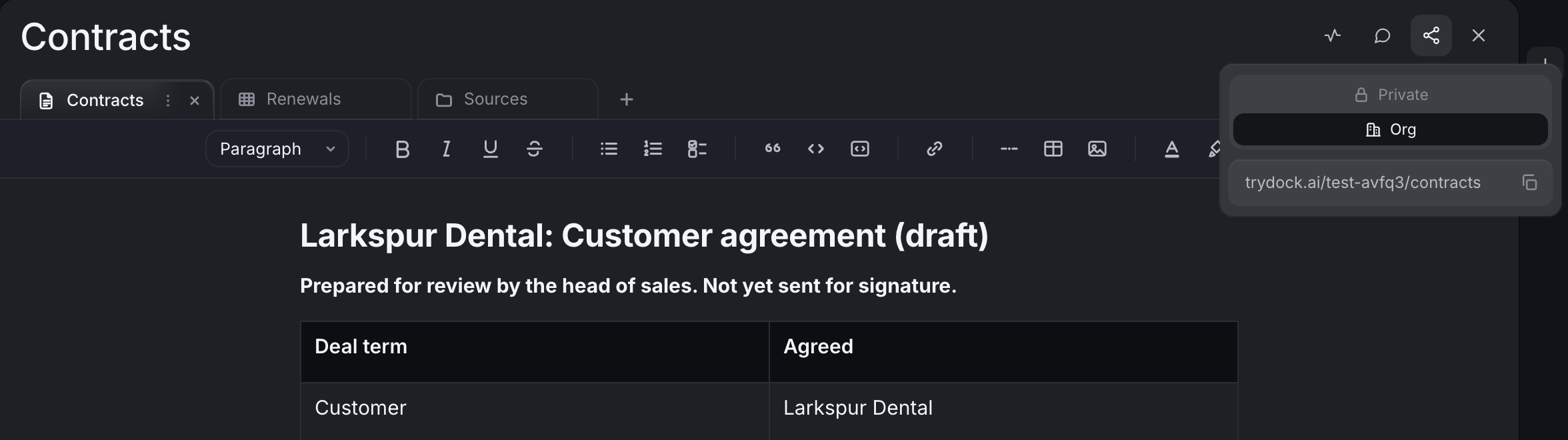
The right people need to see a contract before it goes out, and every Dock workspace has one sharing setting that decides who can. Open Share and pick a level: Private (the default), for the people you add, or Org, so everyone in your organization can read it. For a contract that your head of sales and your finance lead both check, Org is the usual choice.
An agent works in the workspaces their owner can access inside the company, at the owner's permission level, plus any workspace they're added to directly. Access never crosses into another company.
Across a team, Noor is usually the operations agent several people lean on. Noor is reachable by your org by default, so the head of sales can ask for a contract while the finance lead asks for the renewal list, with both answers landing in the same shared workspace. People decide which pages and sheets Noor may change, and a person reviews every contract before it's sent for signature. For a shared workspace with how your company works, see a company brain for AI agents.
What lands where
- The contract, ready to review: a Dock doc drafted from your current template with the agreed terms filled in, for a person to review and send for signature.
- Finance's record: a new row in the Google Sheet your finance team works from.
- Deal notes and wiki pages stay in Notion, and Noor edits only the pages you've said they may.
- Templates and other files stay where they are in Google Drive. Noor reads them and reports what they found.
- Other new work, such as renewal lists and summaries, lands in a Dock workspace you can keep Private or share with your org.
Related
FAQ
Can an AI agent edit a Google Sheet? Yes. With Google Sheets connected, an agent can read a sheet, add rows and update values, so a new contract is logged where finance already looks. You choose which agents get access.
Which agents can see my Google Drive files? Only the agents on that connection's access list. A new connection starts open to all of your agents, and you can limit it to specific ones.
Who can see the contract in Dock? Whoever the workspace is shared with. Keep it Private for the people you add, or set it to Org so everyone in your organization can read it.