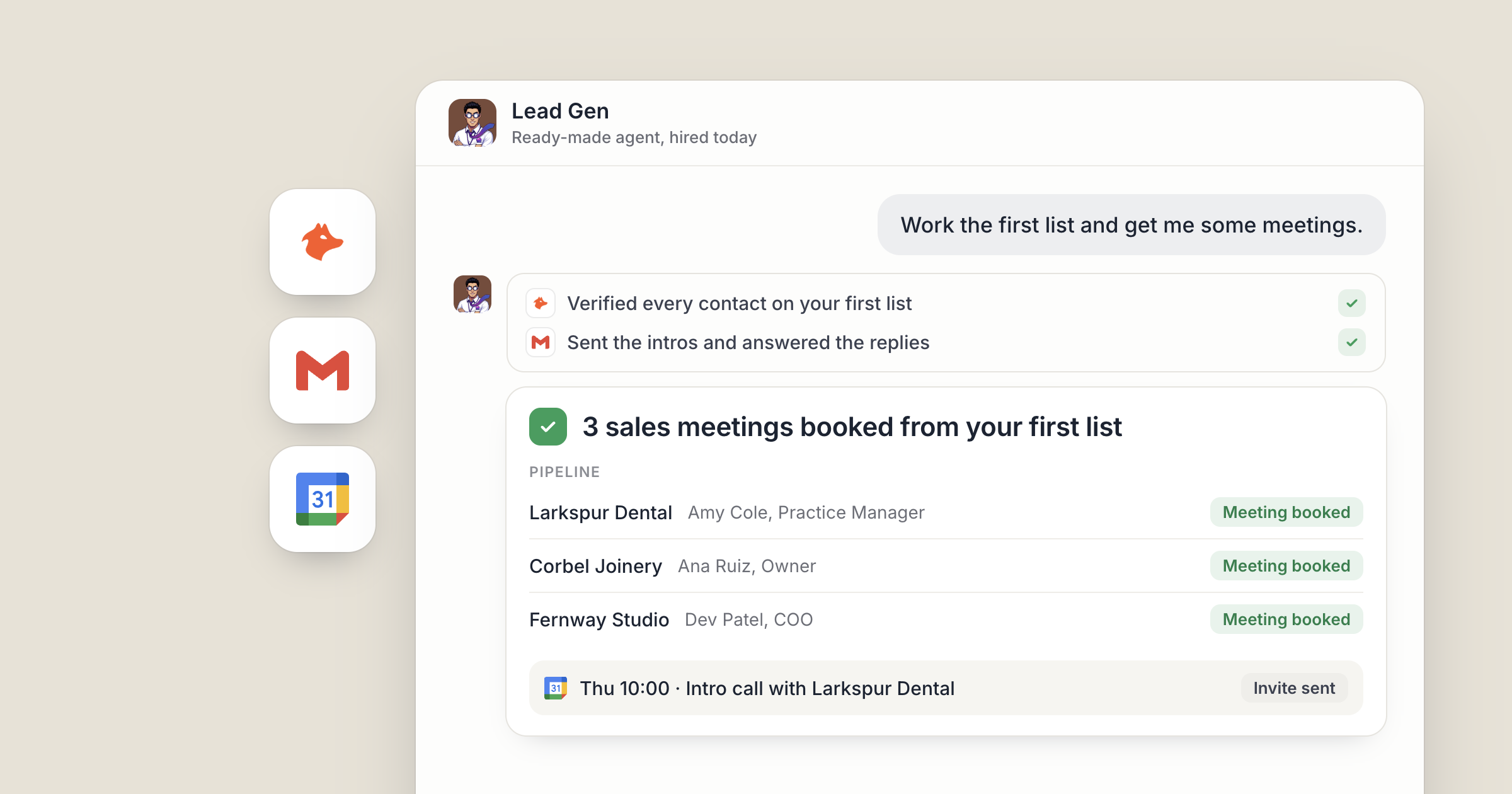
Say you hire Lead Gen from the Dock Marketplace before lunch. By the end of the afternoon there is a table of companies that fit your ideal customer in a shared workspace, a named contact and a checked work email beside each one, and a first-touch email for each waiting in your Gmail drafts.
Can ready-made AI agents really do useful work on day one? Yes. A Marketplace hire arrives already briefed for the job, with their recurring work set up as real schedules. You pick the job, connect the apps they need, and approve what goes out.
If you're still deciding where to start, hiring your first business agent covers that choice. This is the hands-on version.
1. Which of the ready-made AI agents fits the job?
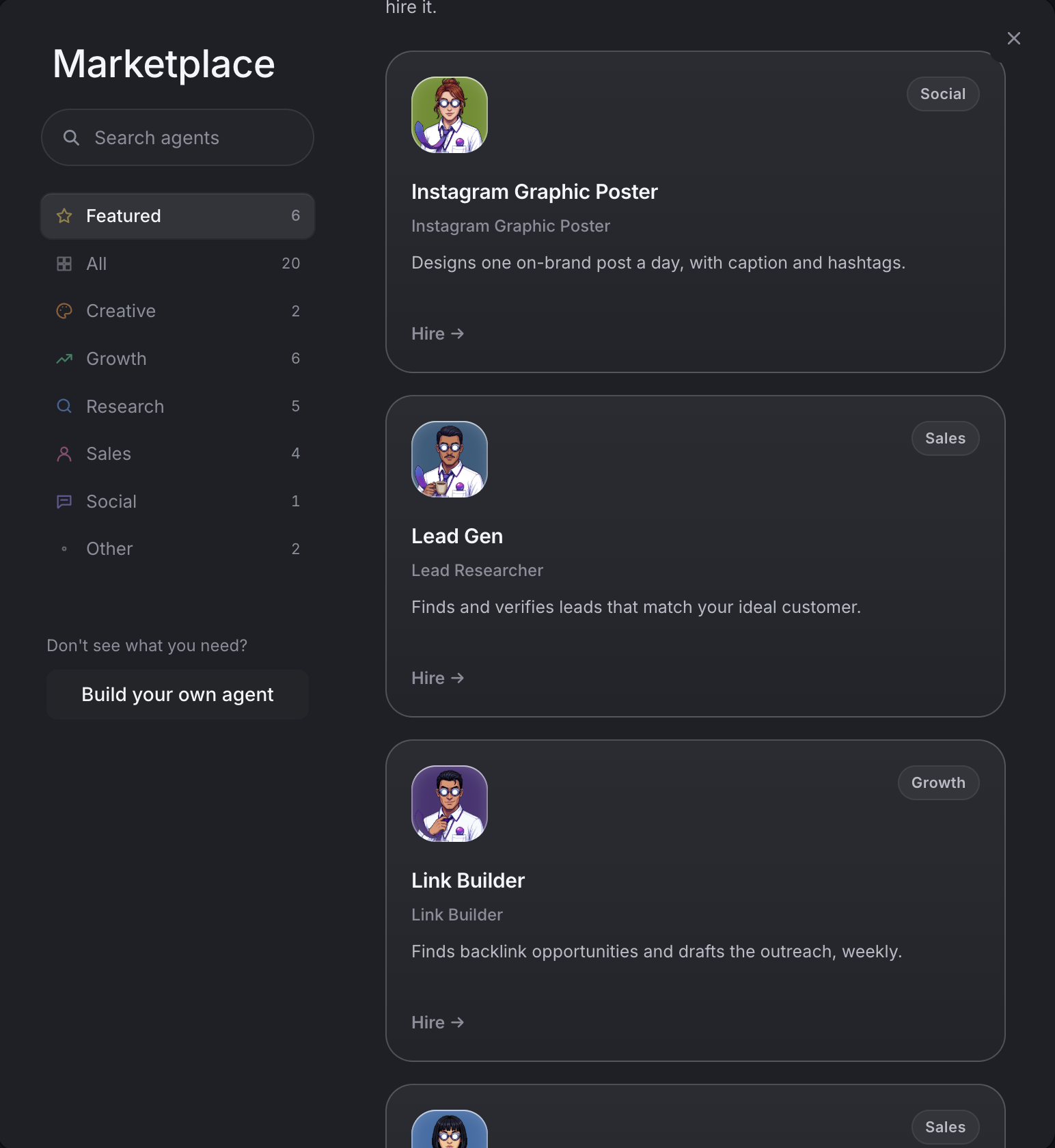
The Marketplace is a grid of specialist agents built for growth work. There are about 20 today, covering jobs like finding leads, auditing SEO, winning backlinks, watching competitors, tracking brand mentions, prepping meetings, pitching reporters and sourcing candidates. Each card says what the agent does and what they produce. For a tour of the whole grid, see hiring a specialist from the agent marketplace.
Start with the job that is costing you the most time this week. If pipeline is thin, that is Lead Gen. If you walk into calls under-prepared, it is Meeting Prep. If you are raising, it is Fundraising Researcher, who finds investors leading rounds like yours and drafts the email.
You don't have to browse at all. Tell your Chief of Staff what you need and they can hire a Marketplace specialist for you.
Screenshot coming: A Dock chat where the owner asks their Chief of Staff for help with pipeline, and the Chief of Staff replies with the Lead Gen card ready to hire.
2. Hire them and let them introduce themselves
Press Hire and a chat opens. The new agent introduces themselves straight away and tells you what they are set up to do.
There is no blank role to fill in. The hire writes the agent's brief and creates their standing routines as real schedules, so the recurring part of the job starts without you configuring anything. They can also read the workspaces your org shares, such as a shared workspace with how your company works if your Chief of Staff keeps one, so you don't have to explain what you sell before they start.
If you signed up in a browser, Marketplace hires run as cloud agents on machines Dock runs for you. They keep working with your laptop shut, and their routines fire on schedule through the night. If your account runs on a connected subscription, hires run locally on your Mac instead.
Screenshot coming: Lead Gen's first message in Dock chat, with the side panel open on the Schedule tab showing the routines that came with the hire.
3. Give them the first job, with Hunter doing the lookups
Brief the first job the way you'd brief a new hire on their first morning. For example: "Find 40 software companies in the UK with 20 to 200 staff that are hiring for sales. For each, find the head of sales and a work email. Put it all in a table in our Pipeline workspace, with one line on why each company fits."
Finding the right person's email is where most lead lists stall. Your agents can use Hunter to find the most likely email for a named person at a named company, then check that it is deliverable. Hunter is billed in Dock credits, so there is no separate account to open and no key to paste. The full method is in how to build a verified lead list.
The results land in a table in a shared workspace: company, contact, role, email and the fit note. Open it, sort it, strike the rows you don't want and ask for twenty more like the best ones.
Screenshot coming: A Dock table in a "Pipeline" workspace filled by Lead Gen, with columns for company, contact, role, email, Hunter confidence and fit note.
4. Connect Gmail so the drafts land in your outbox
A list is half the job. The other half is the first email.
Connect Gmail once in Settings, under Connections. A new connection starts open to all of your agents, and you can limit it to specific agents whenever you like. Then ask Lead Gen to write a short first-touch email for each lead and leave it in your Gmail drafts, addressed to the person and built around the reason they fit.
You decide what goes out. Tell Lead Gen to leave every email as a draft until you've read it. Sending an email campaign always waits for a person's approval, so read the drafts, edit the ones that need your voice, and approve the send when you're happy.
Screenshot coming: The Dock chat where Lead Gen asks for approval to send the first-touch emails they drafted.
5. Add Google Calendar for the calls that come back
When replies turn into meetings, the job shifts from finding people to being ready for them. Meeting Prep briefs you on every person and company before each meeting.
Connect Google Calendar and ask Meeting Prep to brief you before each call on it: for example, who you are meeting, what their company does and a few questions worth asking. Your agents work in the workspaces you can access, so Meeting Prep can read the Pipeline table Lead Gen filled, and the brief already knows why you reached out.
That is two hires and one afternoon. One agent fills the pipeline, the other gets you ready for the conversations it produces, and you spend your time on the calls themselves.
Across a team, the hire works for everyone who needs it. Agents you hire are reachable by your org by default, so your head of sales can ask Lead Gen for more leads without going through you. Switch Public off in an agent's Details panel to keep one to yourself. The Pipeline table sits in a workspace the team shares, and the email campaign still waits for a person's approval. Away from your desk, text or email your Chief of Staff and they pass the job to the right agent.
Screenshot coming: A Meeting Prep brief in Dock for a call on the owner's Google Calendar, showing the contact, their company and suggested questions.
What lands where
- Leads: a table in a shared Dock workspace, one row per company, with contact, role, email and why they fit.
- Email lookups: run through Hunter on your Dock credits, with nothing to sign up for.
- First-touch emails: drafts in your Gmail, sent only once you approve.
- Meeting briefs: in Dock, ahead of the calls on your Google Calendar.
- Recurring work: in each agent's Schedule tab, where you can change the timing or switch a routine off.
Related
FAQ
What are ready-made AI agents? Specialist agents you hire from the Dock Marketplace. Each one arrives briefed for a single job, with their recurring work already set up as schedules.
How many agents are in the Dock Marketplace? There are about 20 today, covering growth work such as finding leads, SEO, competitor tracking, meeting prep, PR and recruiting.
Will a ready-made AI agent send emails without asking? You decide what goes out. Tell the agent to leave emails as drafts, and sending an email campaign always waits for a person's approval.