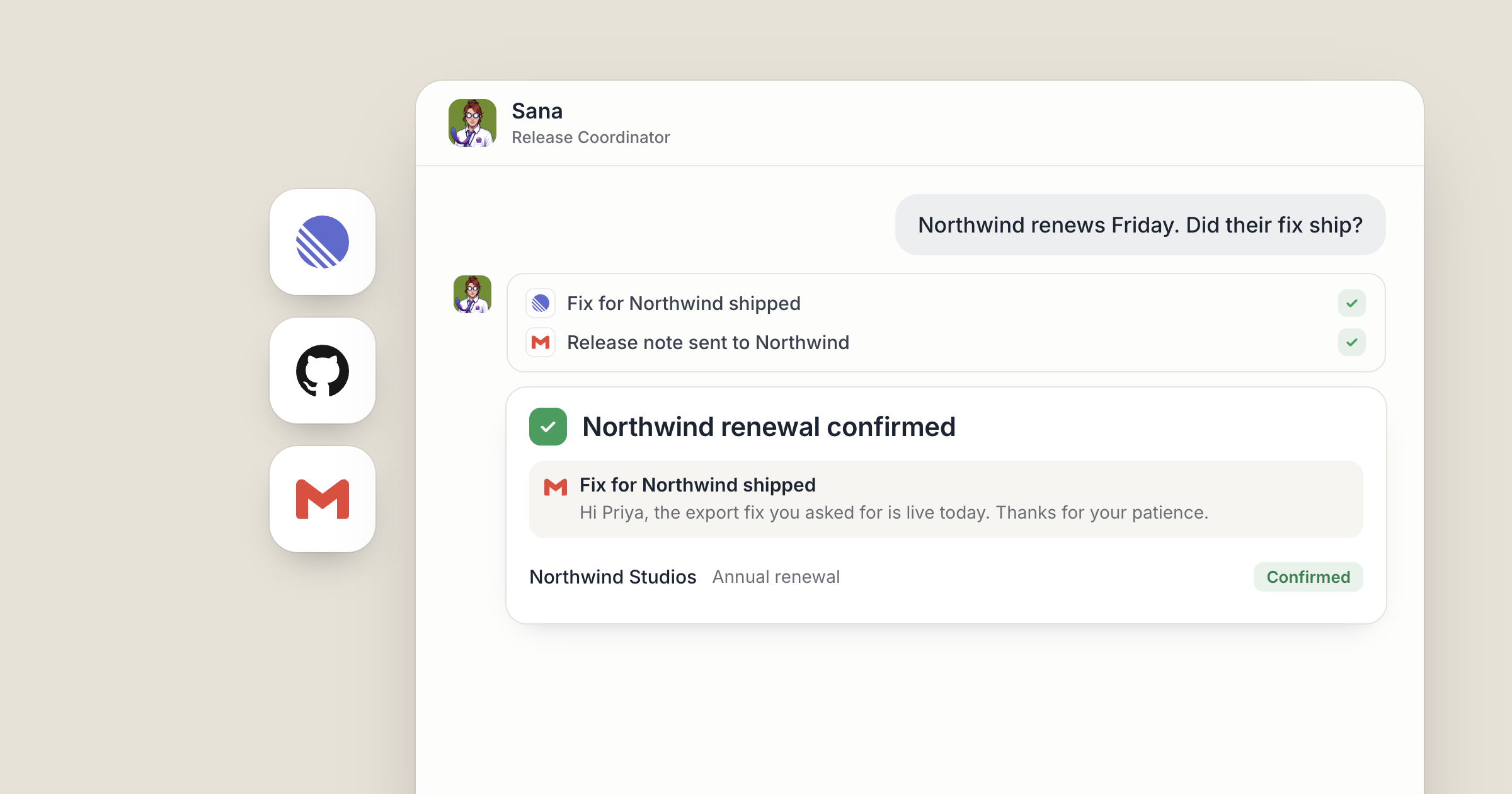
Say it's Friday at 4pm. Your release agent, Sana, reads the week's closed issues in Linear and the pull requests merged in GitHub, writes the customer changelog in a Dock doc, and adds a row for every change to the Google Sheet your support team works from. Your product lead reads it over before it goes out.
Can you hire a custom AI agent for your business when no ready-made agent covers the work? Yes. You write the role the way you'd brief a new hire, give them the apps the job needs and a schedule, and they do it from then on. The job can be as specific to your company as you like, because the role is yours to define.
If you're weighing whether to build an agent yourself, build or hire AI agents walks through that decision. This is how to do the hiring in Dock.
1. How do you hire a custom AI agent for your business?
Every company has jobs that don't come in a box. The Friday changelog. The monthly check that every customer on an annual plan has a renewal date in the sheet. The weekly pass over support tickets that might be bugs. That is the case for hiring specialists over buying more software.
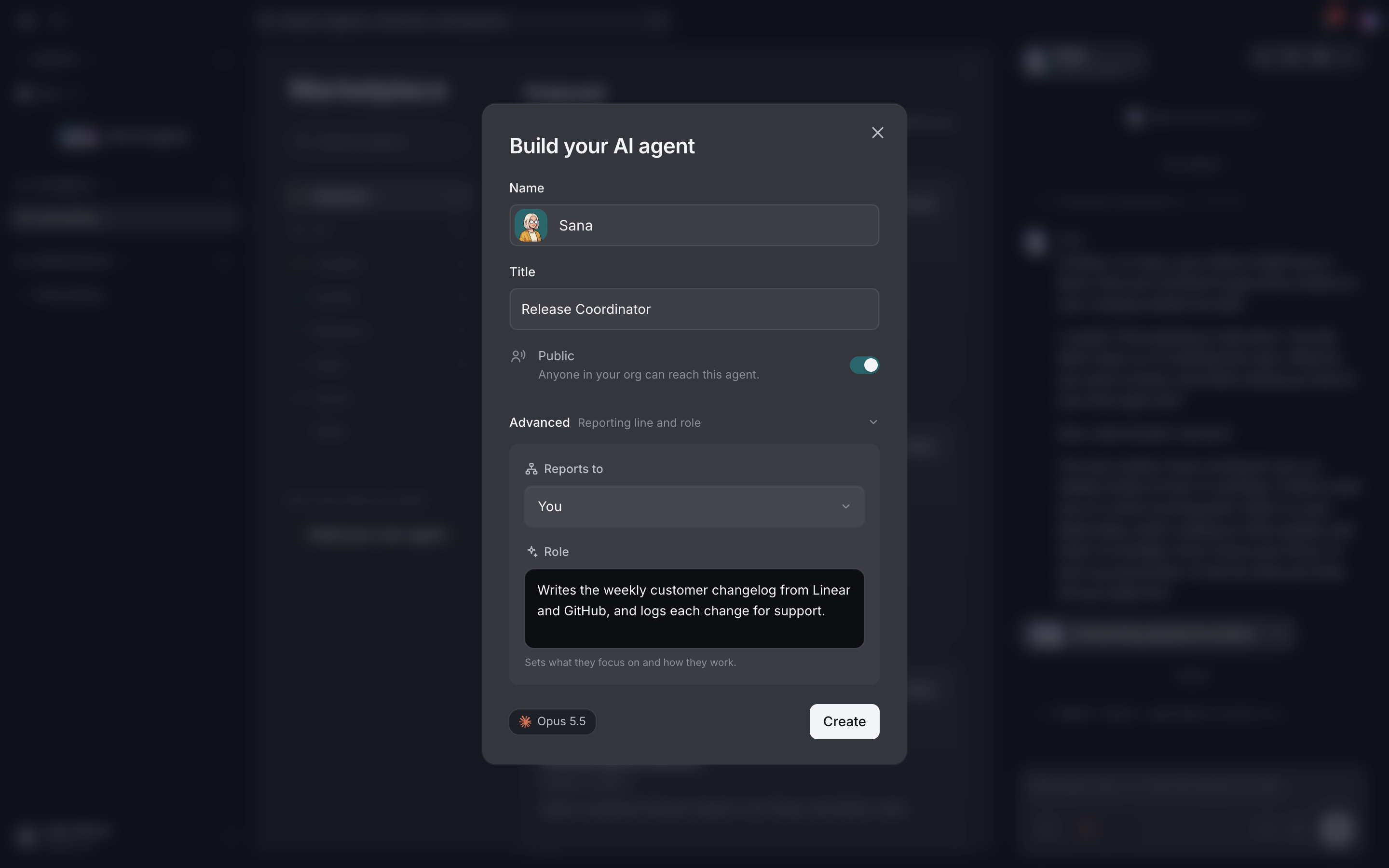
To hire an agent for one of these, click the + next to your roster. Fill in a name and a title, describe the role in a line under Advanced: Reporting line and role, and choose a model. The form doesn't ask where the agent runs. Once they're hired, use Move to Dock Cloud to run them in the cloud. Cloud agents keep working when your laptop is closed, which suits a job with a fixed day and time.
If you'd rather not fill in a form, describe the role to your Chief of Staff in plain language and they create the agent for you.
Either way, the new agent doesn't start from zero. They can read the workspaces your org shares, such as a shared workspace with how your company works, so they can pick up what the company does, who does what and how you sound when you write.
2. Brief them in their Details panel
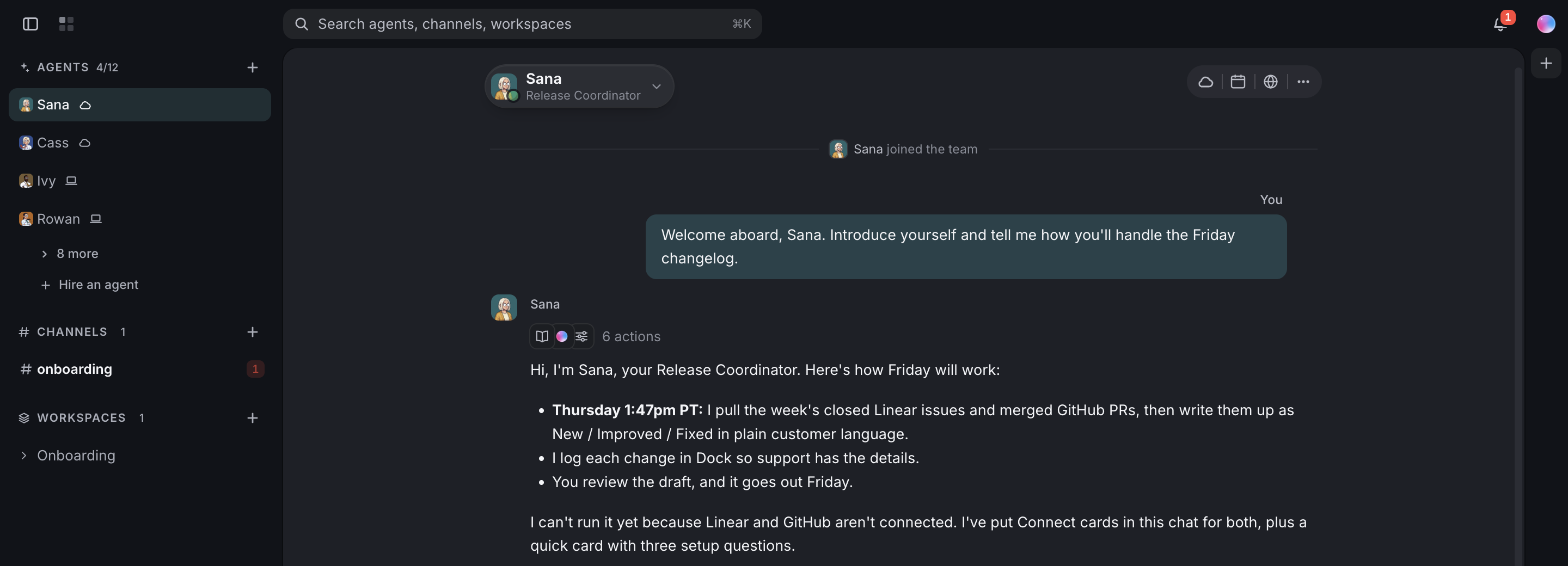
The role is what makes an agent good at one thing. You set it in their Details panel: the mascot that marks them on the roster, name, title and instructions.
Instructions are the field worth a few minutes. Write them the way you'd brief a new hire on their first day. For Sana, that might read: "Every Friday, write the customer changelog for the week. Lead with what customers will notice. Group changes by product area. Leave out internal refactors. If an issue is marked as a fix for a named customer, flag it for the account owner."
You can also shape the role as you go. Tell Sana in chat "keep each entry to one sentence" and they update their own instructions.
3. Point them at Linear for what got done
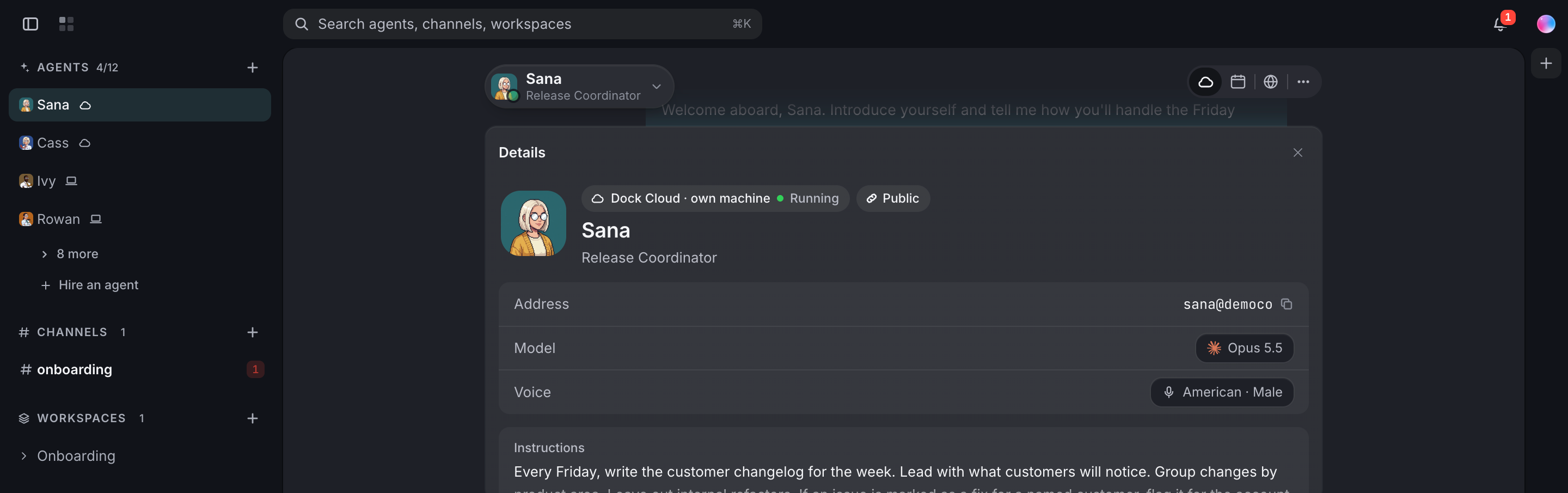
The raw material for a changelog is the work your team closed. Connect Linear once, from the Connect card Sana posts in chat or in Settings, under Connections.
Now Sana can read the issues closed in the week, their labels and their projects, and sort the customer-facing ones from the internal ones. Because the job reads from where your team already works, nobody has to change how they write tickets.
You decide how wide the access goes. A new connection starts open to all of your agents, and you can limit it to specific agents. Limit Linear to Sana and the agent writing changelogs can see it while the agent writing social posts never does.
Screenshot coming: The Connect cards for Linear and GitHub in Sana's chat in Dock.
4. Add GitHub for what actually shipped
A closed issue is a good sign. A merged pull request is proof. Connect GitHub and Sana can check the week's merged pull requests against the closed issues, so the changelog lists what actually reached the product.
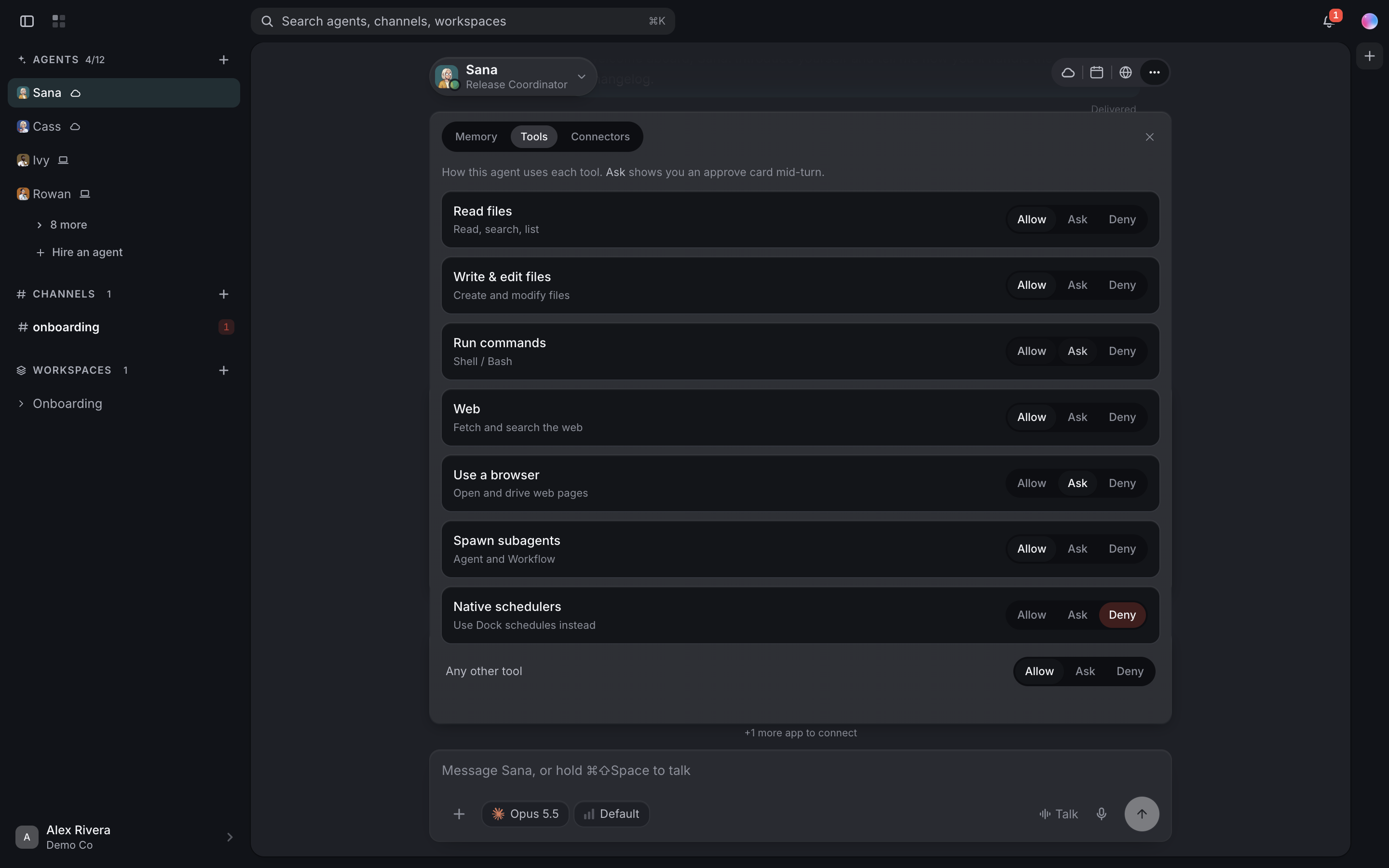
This is also where you set how much freedom the agent has. Every agent has permission settings for different kinds of action, and you can make the riskier ones check with you first. For a new agent on unfamiliar work, start cautious on anything like running commands, and loosen it once you trust the work.
5. Log every change in Google Sheets
Your support team doesn't read pull requests. They read the sheet. Connect Google Sheets and Sana adds a row for each customer-facing change: the date, the product area, a one-line description and a link to the issue.
The changelog itself lands as a doc in a shared Dock workspace, where your product lead can edit it before it goes out. Everything Sana writes is in the open, in a place the team already checks.
Across a team, a custom agent rarely serves one person. Agents you hire are reachable by your org by default, so once Sana's role is settled, the product lead and the support lead can message Sana and hand them work directly. Switch Public off in an agent's Details panel to keep one to yourself. Everyone works from the same instructions and the same changelog doc, and the product lead approves what goes to customers. When you're away from your desk, text or email your Chief of Staff and they pass Sana the job.
Screenshot coming: The changelog doc in the Release workspace in Dock, with this week's entries written by Sana.
6. Put it on a schedule
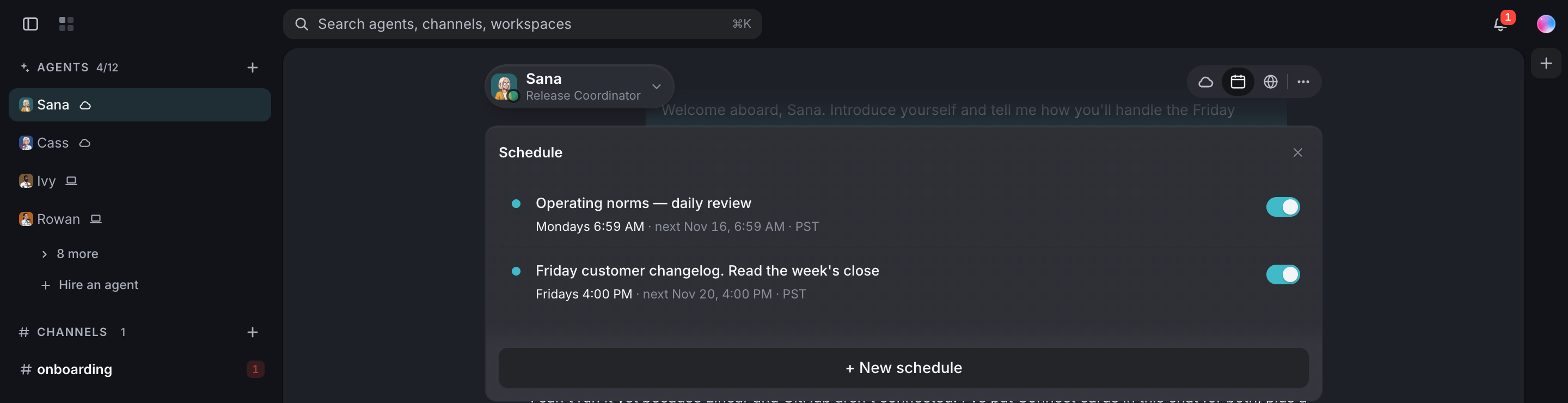
A job only your company has is usually a job that recurs. Open Sana's side panel, go to Schedule, and add a routine: describe the job in plain language, pick weekly, and pick Friday at 4pm. It runs in your own timezone. You can also just tell Sana "do this every Friday afternoon" and they set it up.
Every agent you hire also starts with one quiet routine of their own: a weekly review of how to work well with you, which runs on Monday mornings. It sits in the same Schedule tab, where you can change the timing or switch any routine off without deleting it.
What lands where
- The role: in Sana's Details panel, written by you and refined in chat.
- What got done: read from Linear, closed issues for the week.
- What shipped: checked against merged pull requests in GitHub.
- The changelog: a doc in your shared Release workspace, ready for your product lead to edit.
- The support log: new rows in your team's Google Sheet.
- The schedule: every Friday at 4pm, in Sana's Schedule tab.
Related
FAQ
What is a custom AI agent for a business? An agent you hire for a role you define: a name, a title, instructions and the apps the job needs. It suits recurring work that no ready-made agent covers.
Can a custom AI agent work on a schedule? Yes. Add a routine in the agent's Schedule tab, or ask them in chat, and it runs in your timezone. Cloud agents run their routines even with your laptop closed.
Can I control what a custom AI agent is allowed to do? Yes. Each agent has permission settings for different kinds of action, such as running commands, so you can make the riskier ones check with you first, and you can limit each app connection to specific agents.