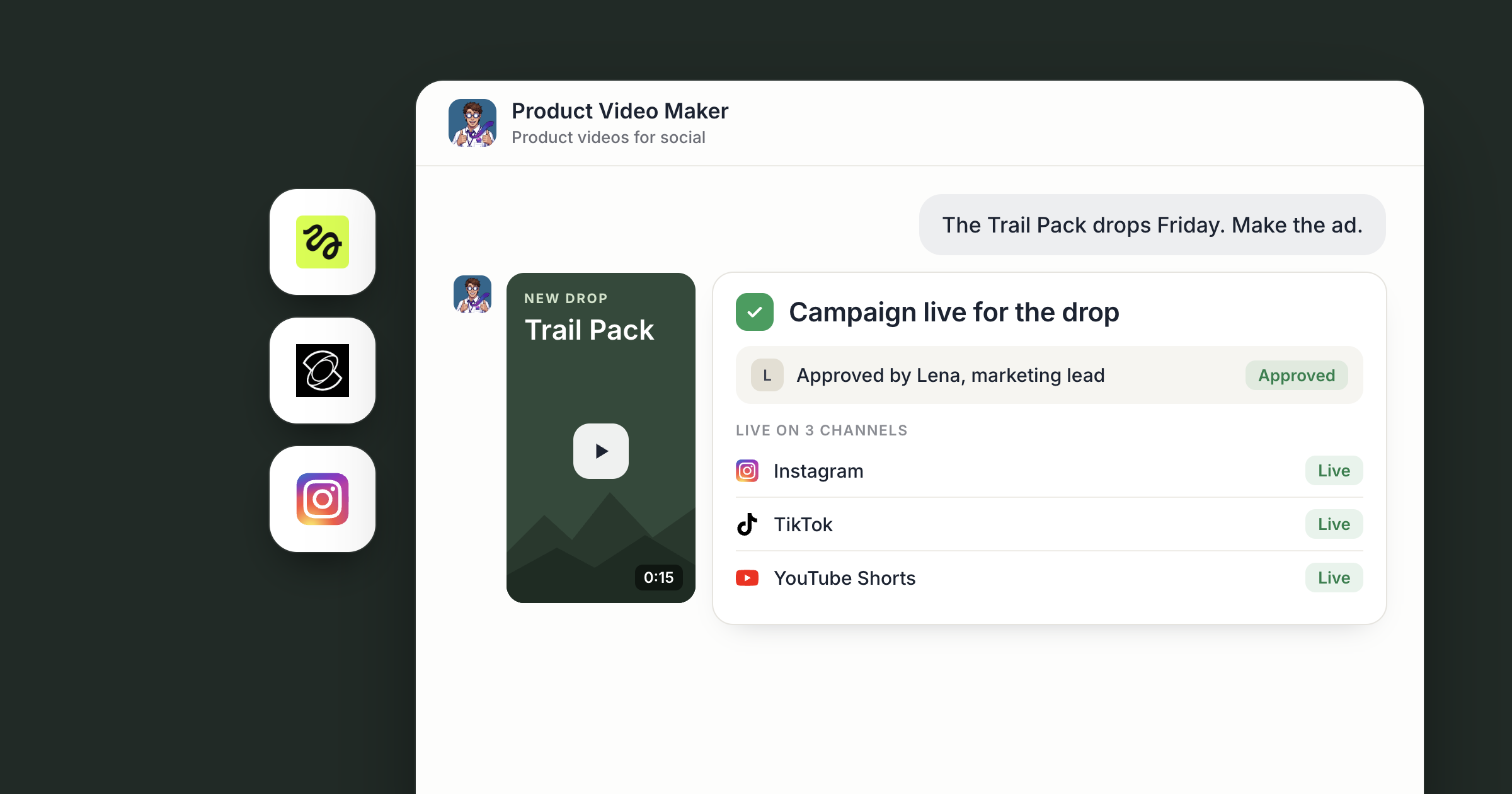
Say you run a skincare brand with a new serum launching this month. Every Monday, a fresh set of short clips appears in the Video tab of your Social workspace: the bottle turning in morning light, a slow close-up of the texture, a vertical cut for Reels. Each clip is labeled, with a caption drafted beside it. Your team picks the ones that go out on Instagram.
That's what AI product videos look like when a business agent makes them. Hire Product Video Maker from the Dock Marketplace, give them your product and your brand, and put the work on a weekly schedule. They plan, generate and cut short clips with Higgsfield and Kling, and your team approves what gets posted.
For what the Video tab and the latest video models can do, read Video tabs and three new models. This piece walks through the weekly routine.
Screenshot coming: The Video tab in a Dock workspace showing a grid of labeled product cuts.
Step 1: How do you start making AI product videos?
Hire Product Video Maker. Their Marketplace card reads "Turns your product into short motion videos made for social." They open a chat and arrive already briefed. Hiring a ready-made agent covers the details.
Give them the raw material: product photos, your product page, brand colors and a few words on tone. Then connect Instagram under Settings, Connections. The Instagram connector works with Business and Creator accounts. Once it's connected, the agent can read your past posts and their insights, so the first creative brief builds on what your audience already responds to.
A new connection starts open to all of your agents, and you can limit it to specific agents. The Help article on the tools your agents can use explains how connections work.
Screenshot coming: Product Video Maker's chat, with the agent's first creative brief listing video ideas and the past posts that shaped them.
Step 2: Set the look with Higgsfield
Higgsfield is a creative platform your team connects. With it connected, the agent can generate images, video, characters and audio through your Higgsfield account, and reuse earlier creations.
That reuse matters for a weekly series. Say week one produces a hero still of the serum on a stone shelf that everyone loves. In week two, ask the agent to build from that same frame, so the series looks like one brand from post to post. Higgsfield is a good place for style frames and key visuals before committing to final motion.
Screenshot coming: The Connect cards in Product Video Maker's chat for the apps they need.
Step 3: Generate the clips with Kling
For the motion itself, the agent runs Kling, one of Dock's paid tools. Kling turns a text prompt or a still image, such as your product shot or a Higgsfield frame, into a short clip, at up to 4K on some models, with sound if you want it.
Kling runs straight from Dock. It's billed in your Dock credits, with nothing to sign up for and no keys to manage.
The agent writes a prompt for each shot, generates it and checks what comes back. A clip that misses the brief, for example one where the label warps as the bottle turns, gets regenerated before it goes up for review.
Screenshot coming: A Kling clip in the Video tab, with the agent's label naming the shot.
Step 4: Review the cuts side by side
Every finished clip lands in the workspace's Video tab, which holds cuts with labels and a side-by-side compare. The agent adds, relabels and removes cuts as the week goes on, so the tab always shows the current set.
This is where your team does its part. Compare two takes of the same shot and tell the agent in chat what to change: "Warmer light on the second one" or "Give me a shorter version of the texture shot." The agent goes back to Kling or Higgsfield, and the new cut appears next to the old one.
Taste stays with your team. The agent makes the options and does the rework. People decide which version represents the brand.
On a small brand team, the work splits cleanly. The founder sets the look, the marketing lead compares cuts and asks for changes, and whoever runs the social account approves what goes out. Product Video Maker is reachable by your org by default, so each of them can ask for a new take directly, and keep the Video tab in a workspace the whole team can open. When a new product photo comes in, text it to your Chief of Staff and ask them to pass it along.
Screenshot coming: Two cuts in side-by-side compare in the Video tab, with the agent's chat open beside them.
Step 5: Get it ready for Instagram, on your schedule
Each approved clip comes with a drafted caption and hashtags in the workspace, written for Instagram and informed by what has worked on your account before. Clips and captions are drafted for the team, posted on the schedule the team approves.
Then make it weekly. Tell the agent which day you want new cuts. Each week, ask them to look at how recent posts did on Instagram, plan the next set and have it in the Video tab before your team sits down to review.
The brief gets sharper with every round. Ask the agent to keep a running note of what your team approved and what got turned down and why, and to carry both into the next set. Want a designed still every day as well? See one on-brand social post a day.
Screenshot coming: The agent's chat showing the weekly schedule and a summary of this week's cuts, with a link to the Video tab.
What lands where
- Clips: the Video tab of your workspace, labeled, with side-by-side compare.
- Captions and hashtags: alongside the clips in the same workspace, one per approved cut.
- Style frames and key visuals: your connected Higgsfield account, ready to reuse next week.
- Posts: drafted for the team, posted on Instagram on the schedule the team approves.
- Clip generation: Kling, run from Dock as a paid tool.
Related
- How teams run on Dock
- AI social media posts for business: one on-brand post a day
- AI voiceover for business: voiceovers, podcasts and transcripts
FAQ
What are AI product videos? Short clips made by an AI video model from your product photos or a written description. In Dock, an agent plans the shots, generates them and puts them in your Video tab for review.
Do I need a Kling account? No. Kling runs as a paid tool inside Dock.
Do the videos post to Instagram automatically? Clips and captions are drafted for the team, posted on the schedule the team approves. People choose which versions go out.