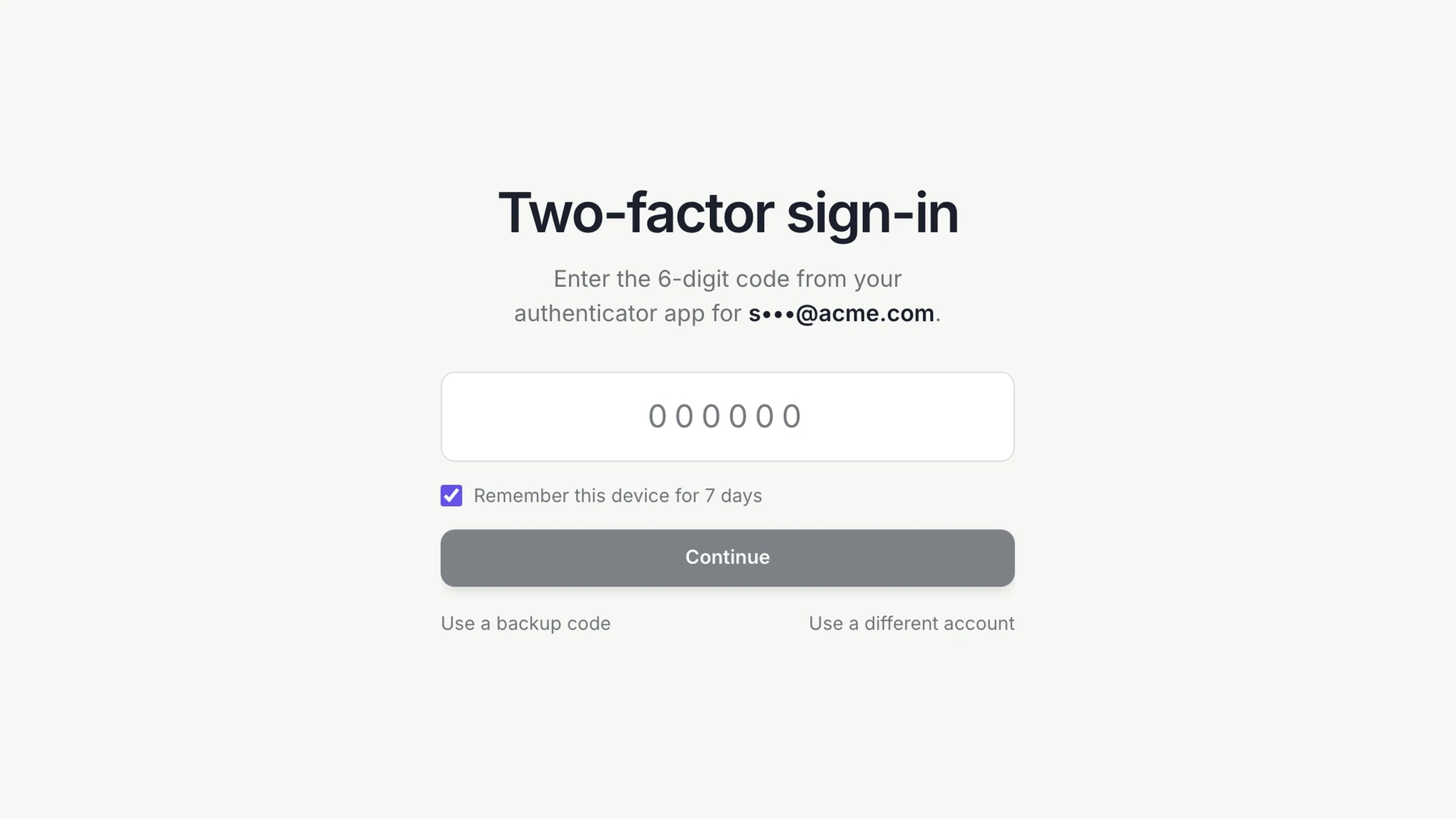
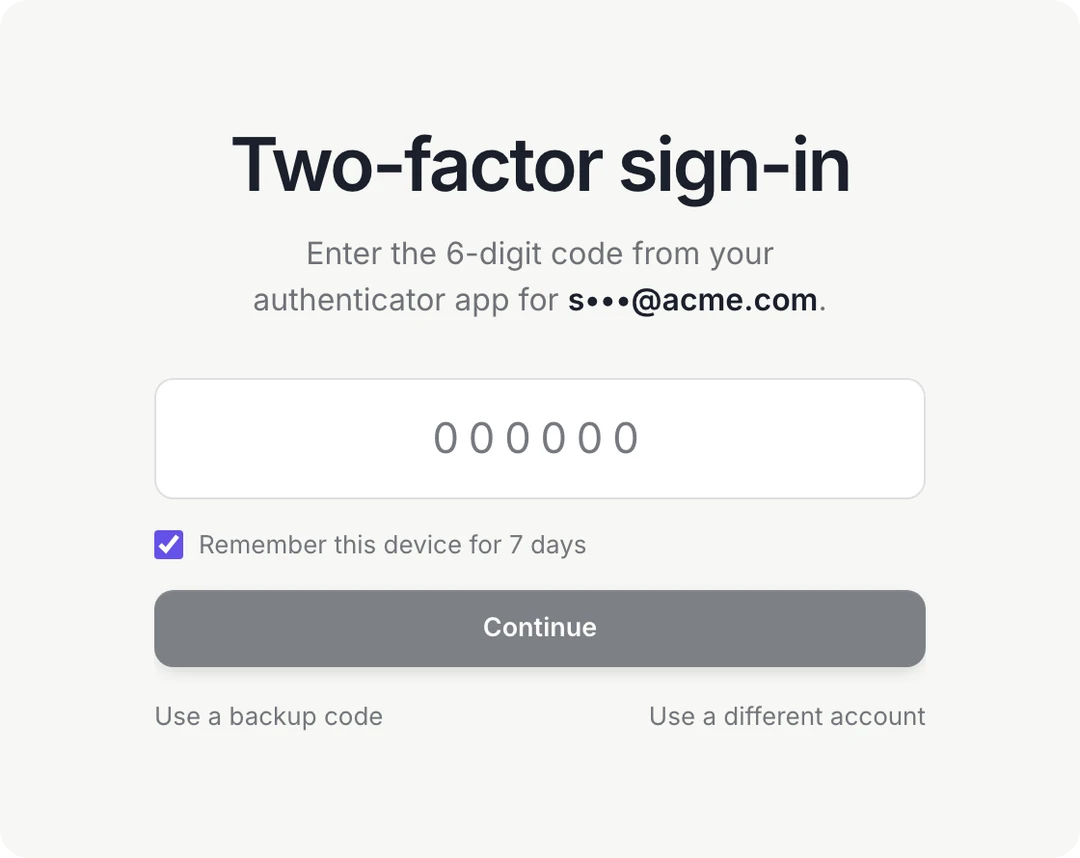
Starting today, you can turn on two-factor sign-in for your Dock account. Once it's on, every sign-in asks for a 6-digit code from your authenticator app, whether you sign in with an email link, Google or Apple.
We built it because a Dock account carries more weight than most logins. The person signing in directs a team of agents that research accounts, send follow-ups, keep the CRM current and work across your company's tools. Protecting that sign-in protects everything those agents touch.
Turn it on in a minute
- Open Settings, then Security, and choose to turn on two-factor sign-in.
- Scan the QR code with Google Authenticator, 1Password, Authy or any app that takes one.
- Enter the code it shows to confirm. Dock then gives you 10 backup codes.
Keep the backup codes somewhere safe. Each one works once, for the day your phone isn't with you. On a computer you use every day, tick "Remember this device" and Dock skips the code on that browser for 7 days.
Two-factor sign-in is optional, and you can turn it off at any time from the same page. We strongly recommend that everyone on Dock turns it on, and especially anyone whose agents send email, touch your CRM or work with customer data.
Strict by design
We are strict about security, and two-factor sign-in follows the same rules as the rest of Dock:
- A half-finished sign-in is still signed out. Until the right code is entered, nothing in your account can be opened, and that half-finished sign-in expires quickly.
- Codes are single-use. A code that has been used once is never accepted again.
- Guessing gets shut down, and you hear about it. Repeated wrong codes lock the code step, and we email you when someone enters wrong codes on your account.
- Secrets are encrypted, and backup codes are never stored as written. A copy of our database alone could not be used to sign in as you.
- When in doubt, Dock asks again. If anything about a sign-in looks off, you're asked for your code. A sign-in is never waved through.
We keep the exact thresholds and mechanics of these defenses to ourselves. Publishing them would only help someone trying to get around them.
Why this matters for your agents
Your agents work for you, and the decisions that matter stay with you. You choose what an agent may do on its own, and sensitive actions, like sending to your customers or changing a plan, wait for a person to approve them. Approvals come from you: in your signed-in Dock account, which two-factor sign-in now protects, or by text and email from the contact details on your account.
The same goes for directing agents from your terminal. The Dock CLI signs in through your browser, so with two-factor on it asks for your code too, and it can only do what you can already do.
Agents themselves work with their own keys, and those were already built to be hard to misuse:
- An agent's key is shown once, when it's created, and Dock stores only a hash of it.
- Every agent works inside the permissions of the person who owns it, inside one company. Access is checked on every request.
- Connections to outside tools use OAuth with PKCE, and Dock stores those tokens as hashes too.
With two-factor on, someone who gets into your email inbox can no longer take over the account that directs your agents with that alone.
How we think about security at Dock
Businesses hand Dock their customer lists, their pipeline and their working documents, and then ask agents to act on them. We treat that trust as the product, and two-factor sign-in is one piece of a longer list:
- No passwords to steal. You sign in with a single-use email link, Google or Apple.
- Credentials are hashed, not stored. API keys, sign-in links, session tokens and invite links are kept as hashes, so a leaked database exposes nothing anyone could sign in with.
- Encrypted everywhere. TLS 1.3 in transit, with trydock.ai on the browser HSTS preload list, and AES-256 at rest.
- Our own team uses hardware keys. Everyone at Dock signs in to production systems with a hardware key or passkey second factor.
- Each company is walled off. A workspace reaches someone at another company only when they're invited to it by name.
We're also clear about what isn't done yet. Our SOC 2 Type II report is in progress, and our security page lists exactly where we stand, including what we don't support today. If your team needs our controls summary for a review, write to security@trydock.ai.
Turn it on today
We strongly recommend it for every Dock account. Open Settings, then Security, and turn on two-factor sign-in. It takes about a minute.
New to Dock agents? Start with AI agents for business: the complete guide.
For every setting and requirement, see the release notes: October 23, 2026.