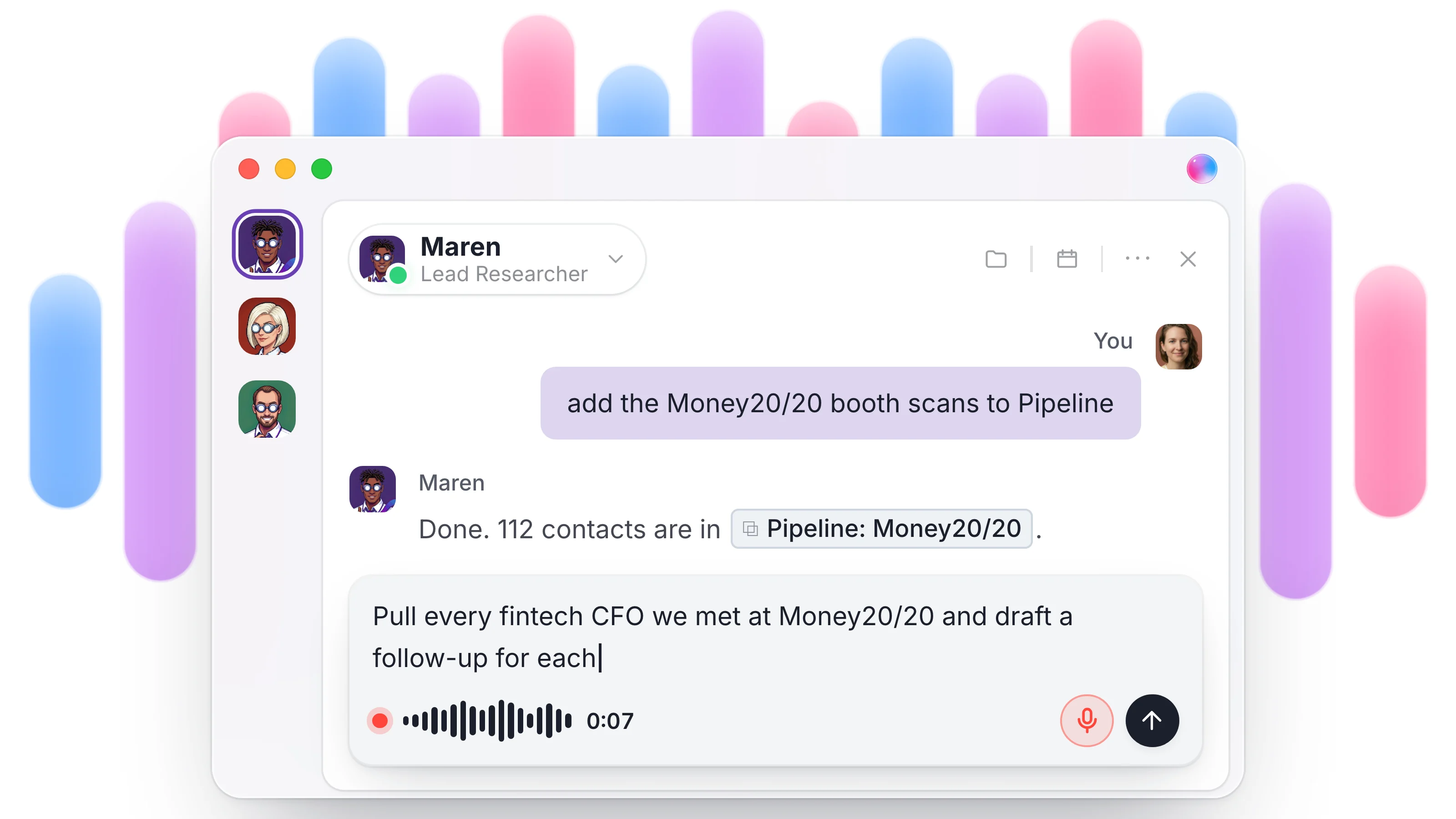
Some requests are faster to say than to type. Starting today, you can talk to your agents in Dock. Hold a key, say what you need, and your words appear in the message box as you speak, ready to check and send.
How it works
Open a chat with any agent and hold the mic in the message box while you talk. Or skip the click: hold Cmd+Shift+Space on a Mac (Ctrl+Shift+Space on Windows) and talk to the agent you have open. Let go when you're done.
Need your hands free? Tap the mic once instead of holding it. It keeps listening until you tap it again. Changed your mind mid-sentence? Press Esc and what you just said is thrown away, leaving the box as it was.
Your words show up live as you talk, with punctuation and numbers already in place. Nothing sends on its own. The message sits in the box like anything you typed, so you can fix a name or add a line, then send it when it reads right. Your agent replies in the chat as usual.
What it's good for
- Handing off a job on your way out the door: "Riley, follow up with everyone from Tuesday's demo and book a call with anyone who replies."
- Context that's tedious to type: a client's history, what went wrong on a call, how you want this month's report laid out.
- Thinking out loud. Say the messy version, tidy it in the box, then send.
Your mic, your call
Dock only listens while the mic is on. What you said lands in the box as text you can edit, or drop with Esc, before anything is sent.
Where it works
Voice works in agent chat on the web and in the Dock Mac app, with every agent and on every plan. The first time you use it, your browser or Mac asks for microphone access.
New to Dock agents? Start with AI agents for business: the complete guide.